Nobody knows who has what
Issued gear is tracked per member, with dates and who issued it.
Uniform and gear inventory by size, role eligibility, member requests and approvals, scan-to-issue, issued-gear tracking, and low-stock alerts.
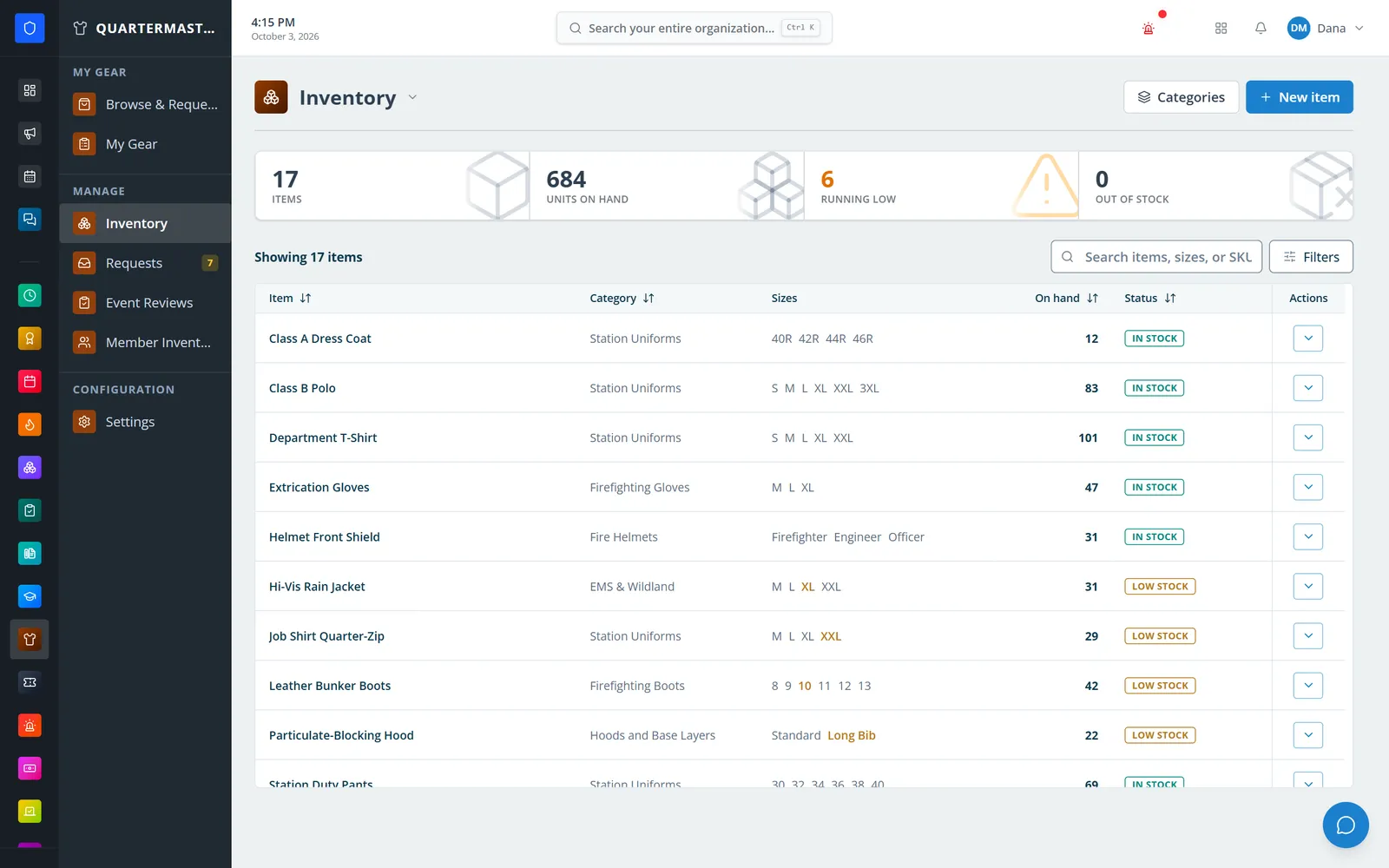
Organize gear into categories, items with pictures, and sizes with their own SKU, and decide which roles can request each item. Members browse and request what they need from a phone, the quartermaster scans or picks gear to issue it in one step — deducting stock and recording it against the member — and stock managers are alerted when a size runs low.
Issued gear is tracked per member, with dates and who issued it.
Members request eligible items into a single approval queue.
Alerts fire when a size drops to its threshold.
Supplies checklists send shortages and consumption for review.
Real screens from Station Clipboard, shown with a sample department.
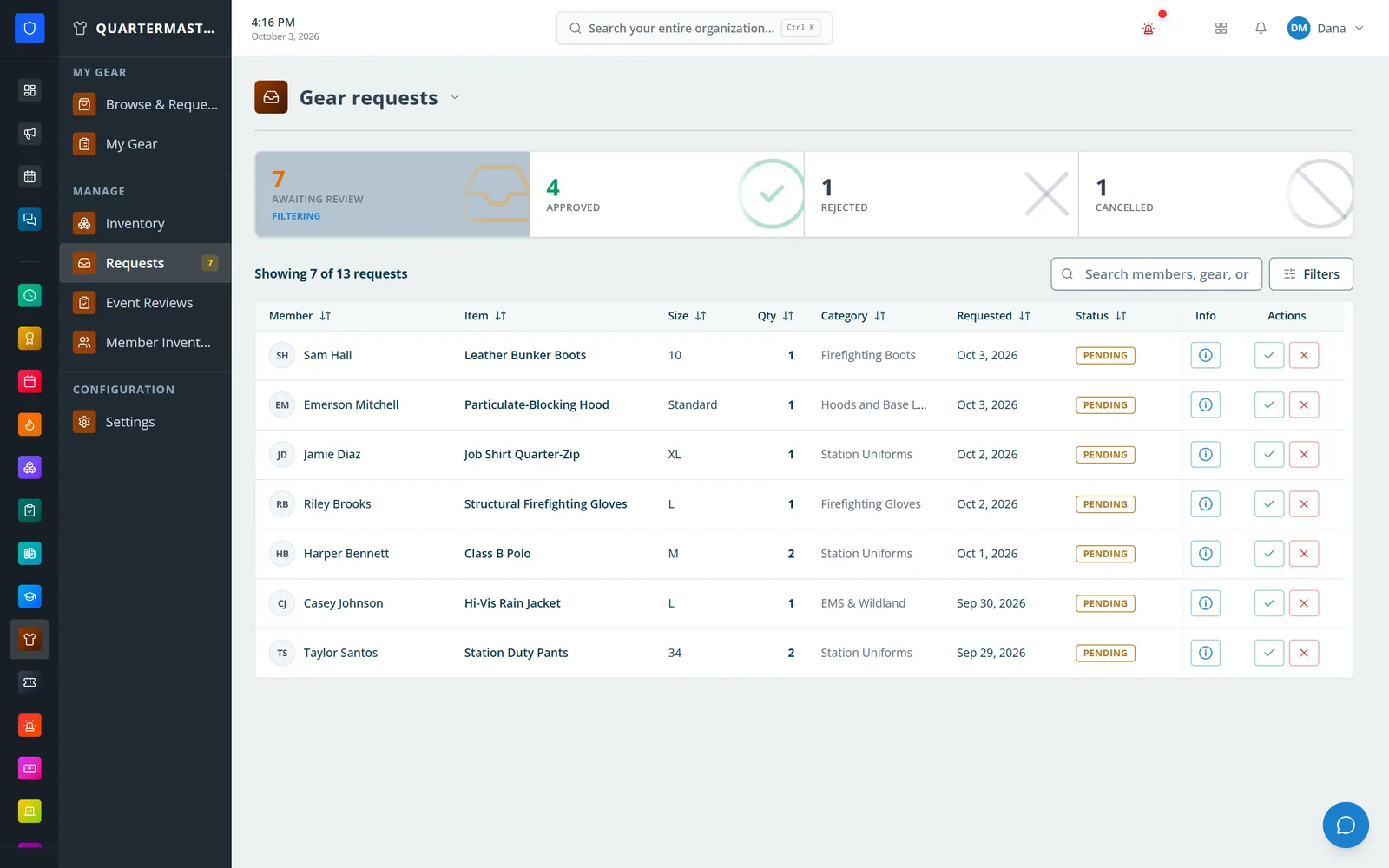
Pending requests with size, quantity, and date, approved or rejected in one click.
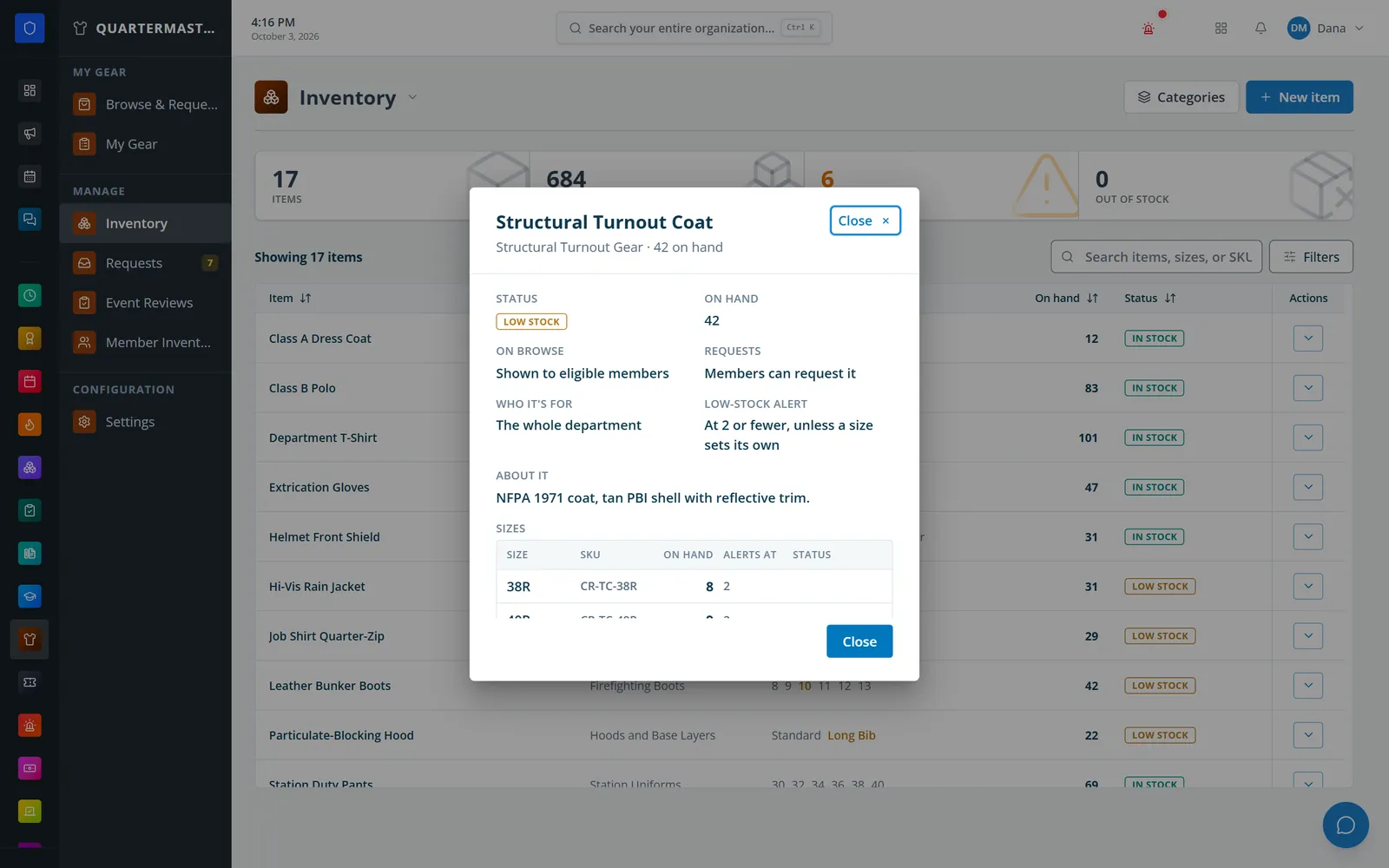
Each size carries its own SKU, on-hand count, and alert threshold.
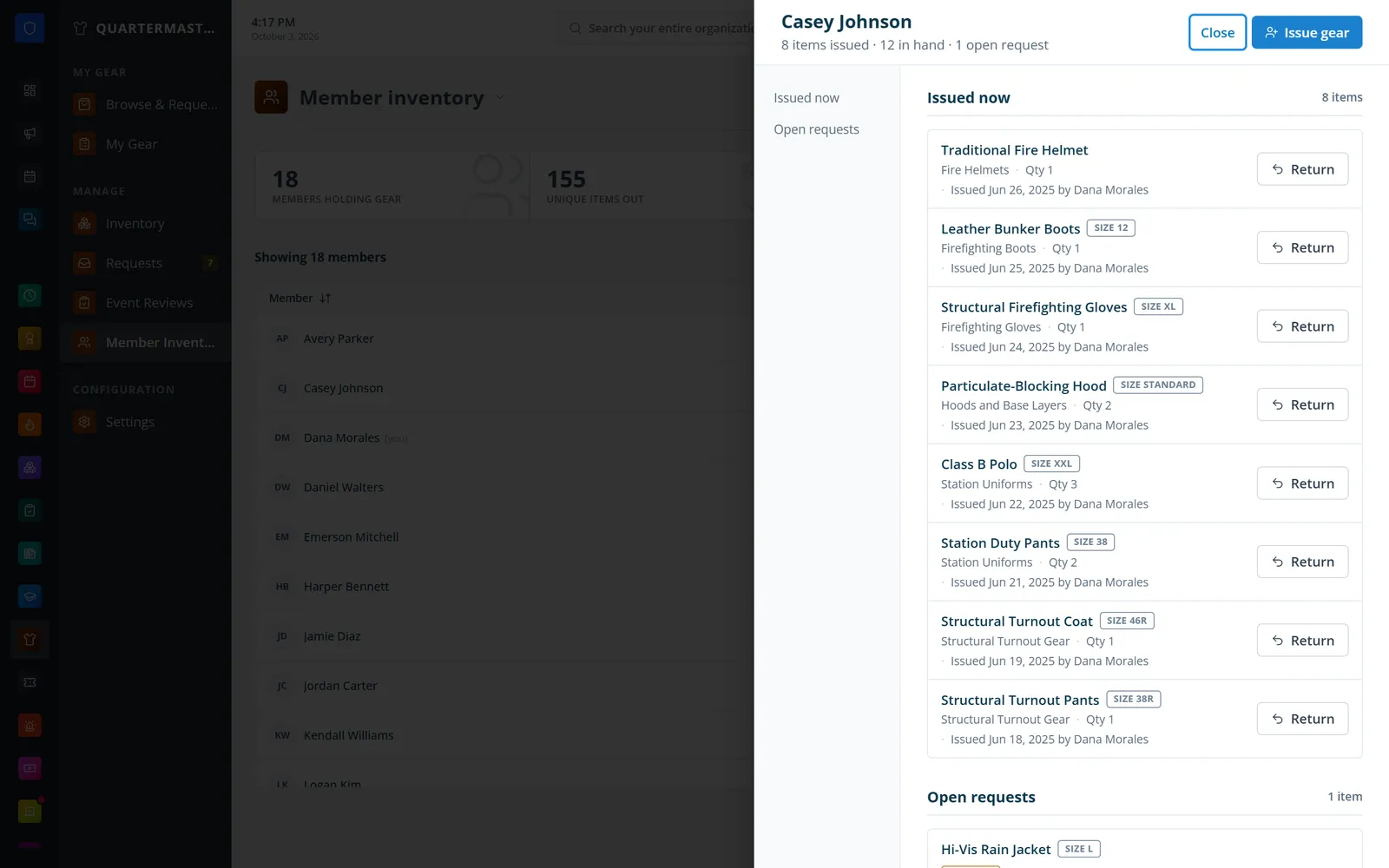
What one member holds, when it was issued and by whom, with returns and open requests.
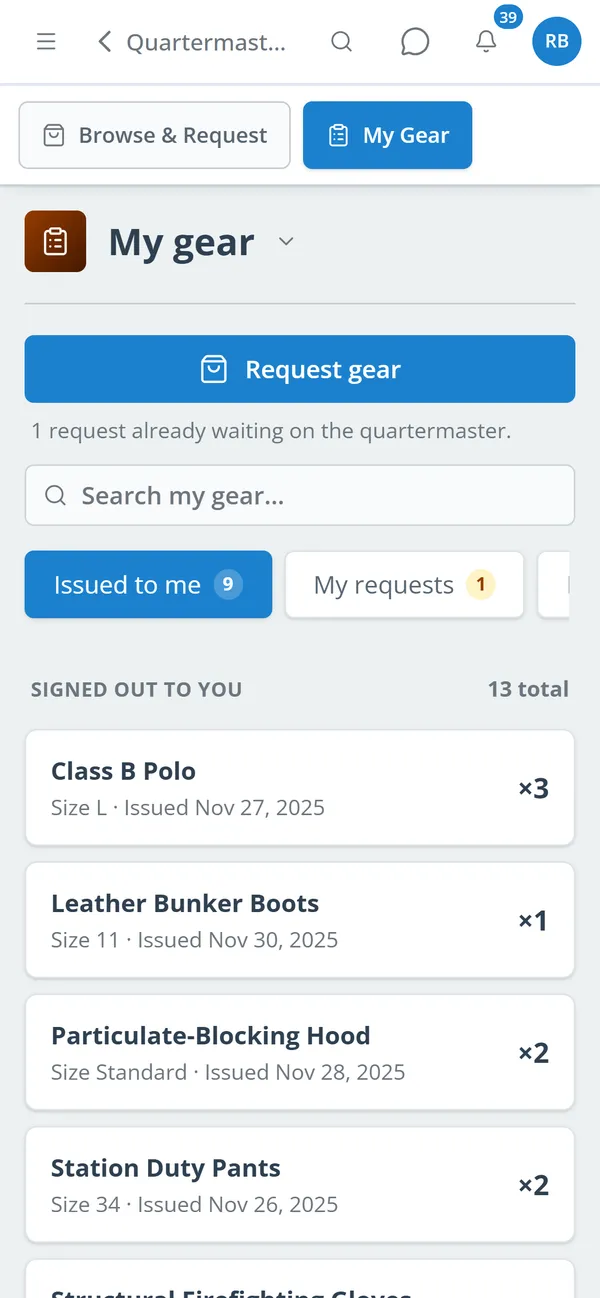
Members see what is signed out to them and request more in a tap.
Categories, items with pictures, sizes with SKUs, and role eligibility.
Browse eligible items, see stock status, and request a size and quantity.
Approve a request, or scan labels into an Issue gear list that fills open requests.
Process returns with optional restock, and adjust stock with notes.
On-hand counts, SKUs, and low-stock thresholds for every size.
Limit items to specific roles on browse and on request.
A USB scanner at the desk or the phone camera adds the scanned size to Issue gear.
Issue several items to a member at once; issuing gear someone asked for approves their request.
Approve, reject with a reason, or let members cancel pending requests.
Action-required notifications to the people who manage stock.
Every add, subtract, adjustment, issue, and return with who and why, shown per size.
Members see what is signed out to them, their requests, and a one-tap Request gear button.
Members keep one secure sign-in and one set of role permissions across every module you turn on.
Yes. Items limited to roles are hidden from members without those roles.
No. A USB scanner can be switched on per device, and a phone camera works without any setup. Gear can always be picked from the list.
No. Shortages and use logged on supplies checklists wait in Event Reviews until someone approves them.
Tell us how you handle this work today. We’ll walk you through it in the full Station Clipboard portal.
Need something we don’t have yet? We build custom modules.