
#Before you start
You need the Edit member records permission. Only your department’s administrators can grant it. Station Clipboard support can’t change your department’s accounts, roles or permissions.
You never see or set a member’s password. The portal emails them a link and they choose a new one, so the member needs an email address on their account.
Members can do this themselves with Forgot password? on the sign-in screen. See Reset your password and set up two-factor.
#Send a password reset
- In the side menu, under Organization, open Personnel, select the member and open Account.
- Next to Password, press Send reset link. For a member who has never signed in, it says Send setup link.
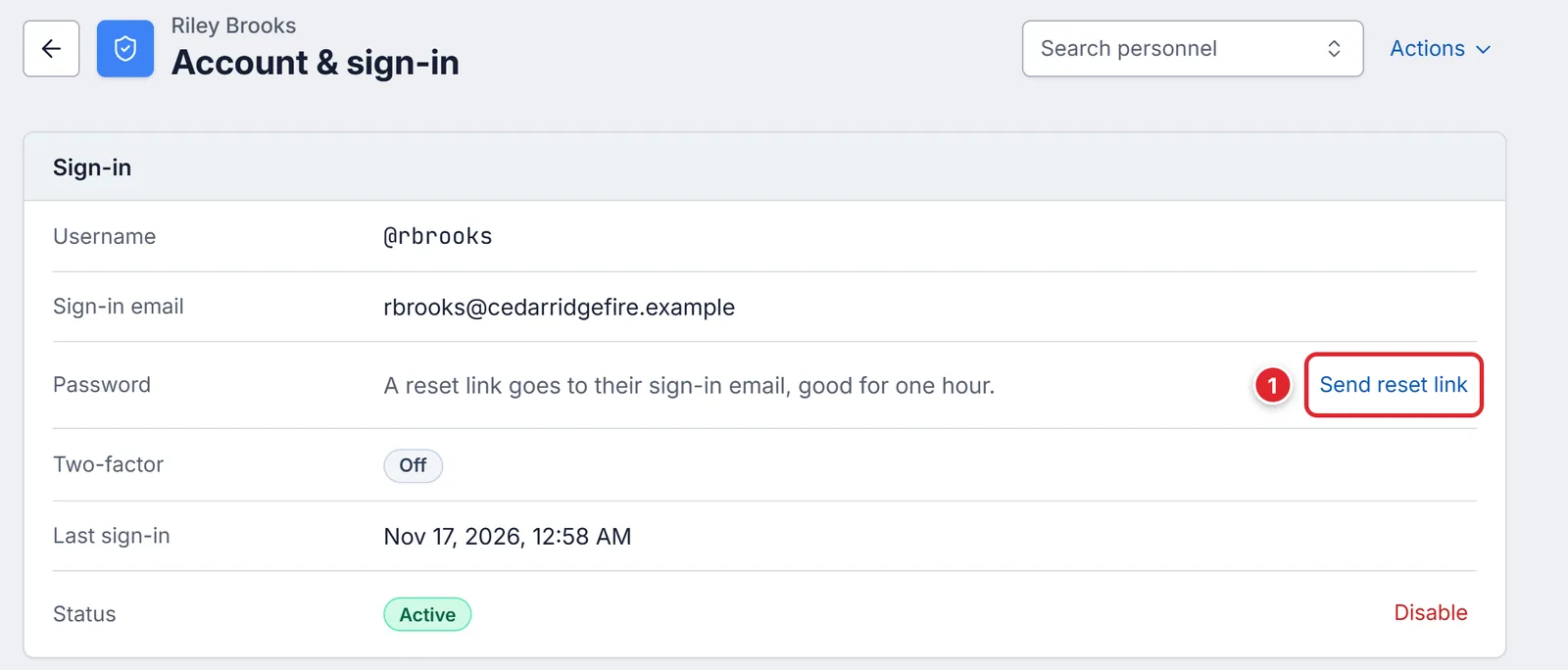
Send reset link sits on the Password row. - Press Send reset link to confirm.
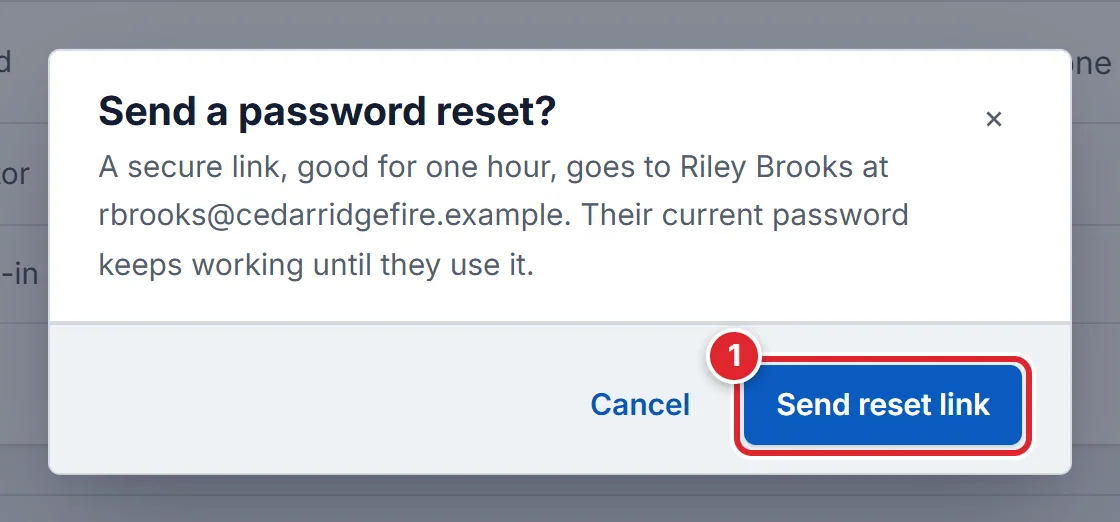
A reset link works for one hour. A setup link works for 7 days.
Their current password keeps working until they use the link. Tell them to check spam if it doesn’t arrive within a few minutes.
#Reset two-factor sign-in
Use this when a member lost or replaced the phone with their authenticator app.
- On their Account page, next to Two-factor (it shows On), press Reset.
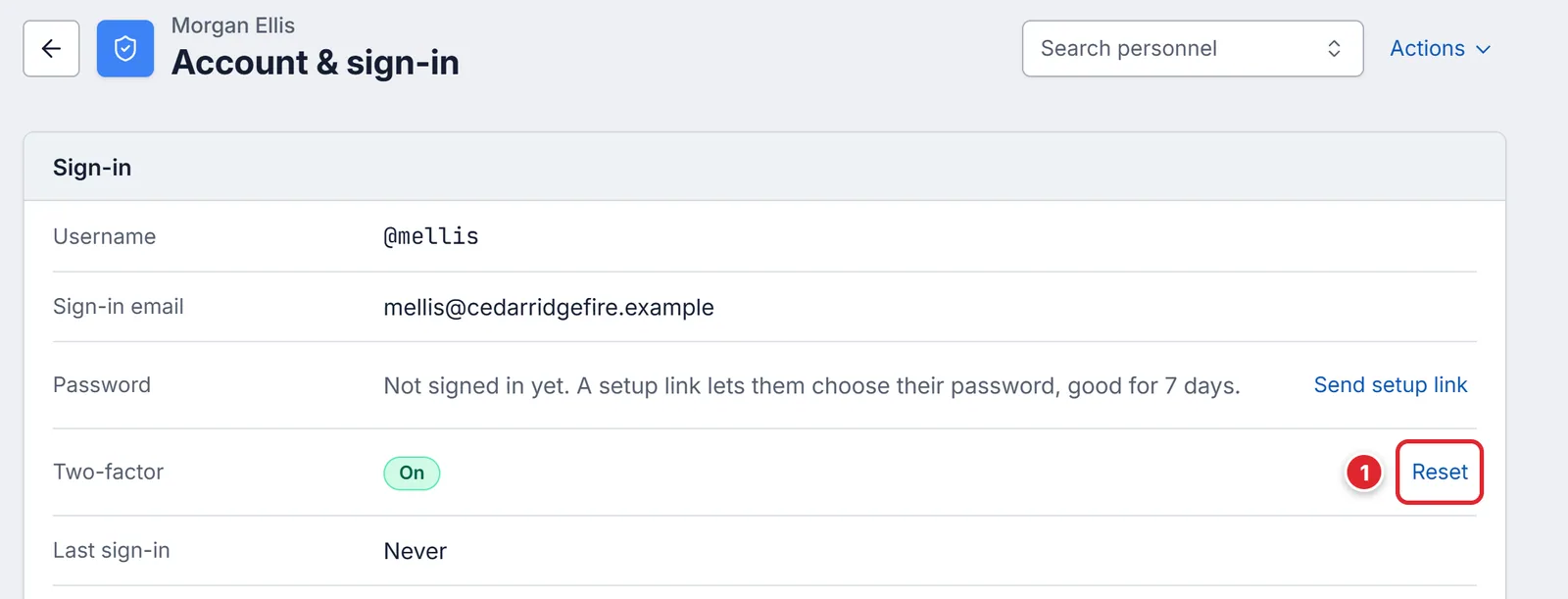
Reset only shows when two-factor is on. - Press Reset two-factor to confirm.
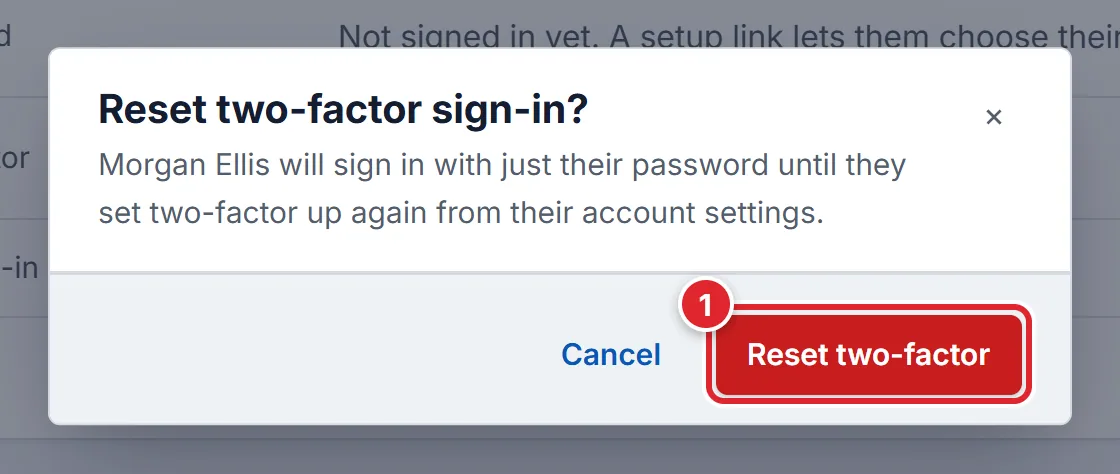
They sign in with just their password until they set two-factor up again.
If your department requires two-factor, they are asked to set it up again the next time they sign in.
#If something goes wrong
- Send reset link is greyed out
- Point at it to see why: there is no sign-in email, or the account is disabled.
- Add an email address to this member before sending a password reset.
- Open Person in their record and add their email, then try again.
- Re-enable this member before sending a password reset.
- A disabled member can’t sign in. Press Enable on their Account page first.
- The email could not be sent. Check the email service configuration and try again.
- The email didn’t go out. Try again in a few minutes. If it keeps happening, open a ticket in the Support Hub.
- This member doesn't have two-factor authentication enabled.
- There is nothing to reset. If they still can’t sign in, send a password reset.
- You're signed in as another member, so you can't change their sign-in security. Exit this session first.
- You are viewing the portal as someone else. Press Exit in the banner at the top.
- Only a SuperAdmin can change another SuperAdmin's account.
- Only another member of the protected role can reset that account.