
#Mark the shifts you can work
When an officer opens a period you get a notification. Open Scheduling, then More › Availability on a phone, or Availability in the Scheduling menu on a computer.
- Check the Period at the top. It shows Collecting availability and the due date.
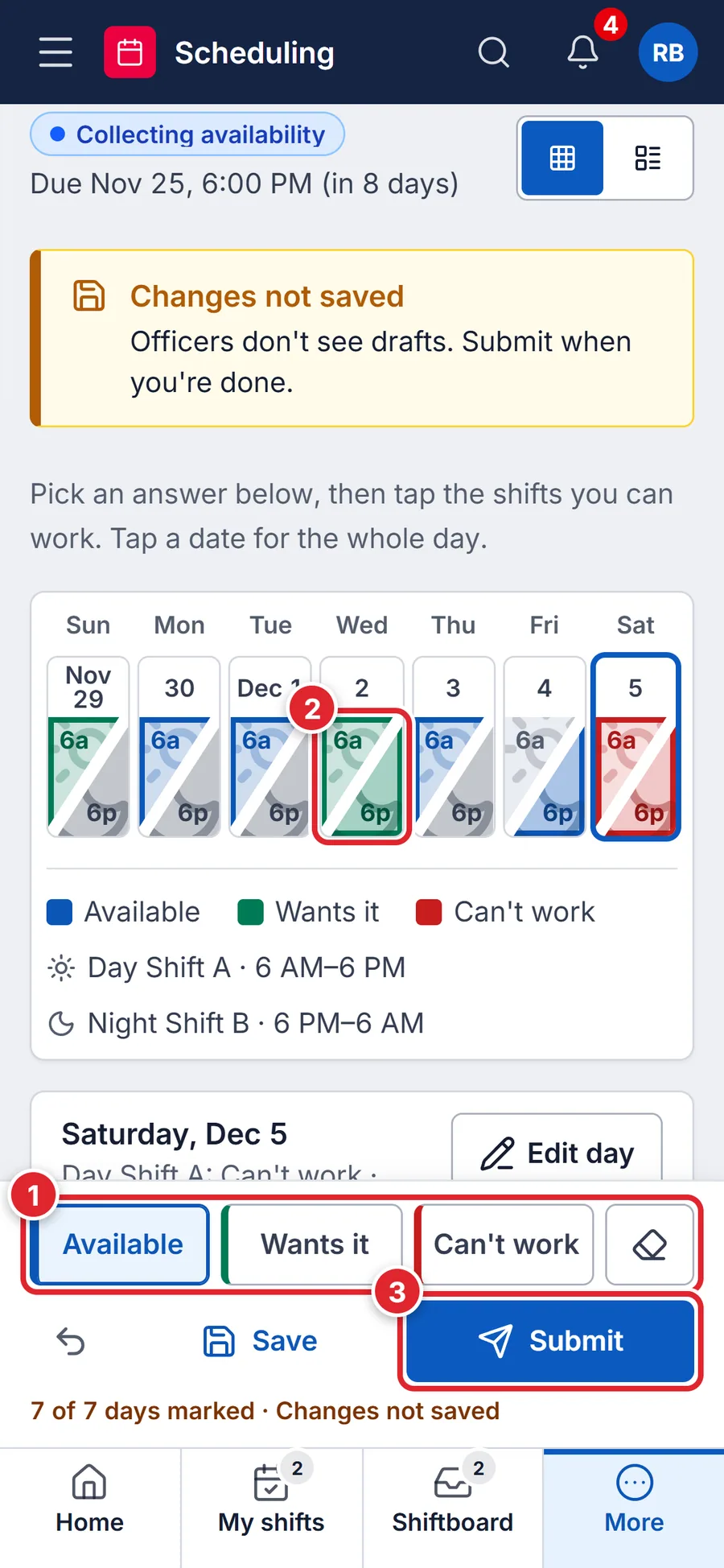
- Pick an answer in the bar at the bottom (1): Available, Wants it (you’d like the shift), or Can't work. The eraser clears a mark.
- Tap each shift to mark it (2). Each day is split into its shifts, for example day on the top left and night on the bottom right. Tap the date to mark the whole day.
- Tap Submit (3). Officers can’t see your marks until you submit. Save keeps a draft only you can see.
Same schedule every week or a rotation like 24 on, 48 off? Under Repeating schedule, press New pattern once and every new period fills itself in from it. You still check it and submit.
You can change your marks and submit again until the officer closes availability. They’re told it changed.
#Missed the due date?
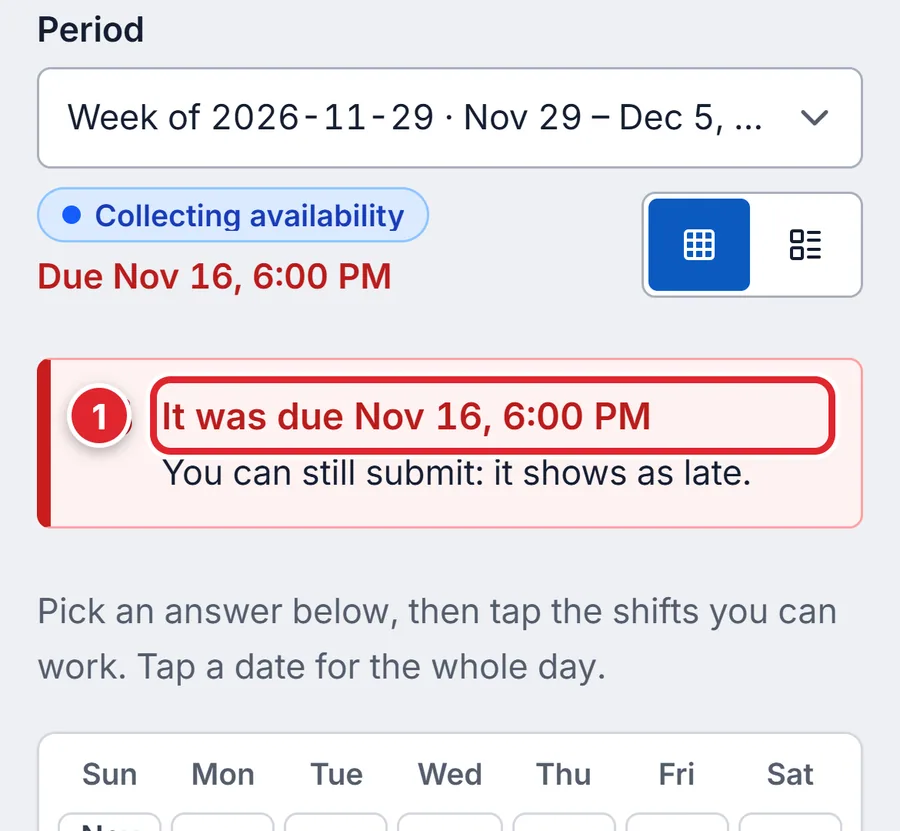
The due date doesn’t lock you out. While the period still shows Collecting availability you can submit; it’s marked late for the officer.
#Availability is closed
Once the officer closes availability you see Availability for this period is closed. If your department allows late changes:
- Tap Ask to edit.
- Say why (optional) and tap Send request.
- When an officer approves it you get a notification and the banner says Your request to edit was approved. Change your marks and submit again.
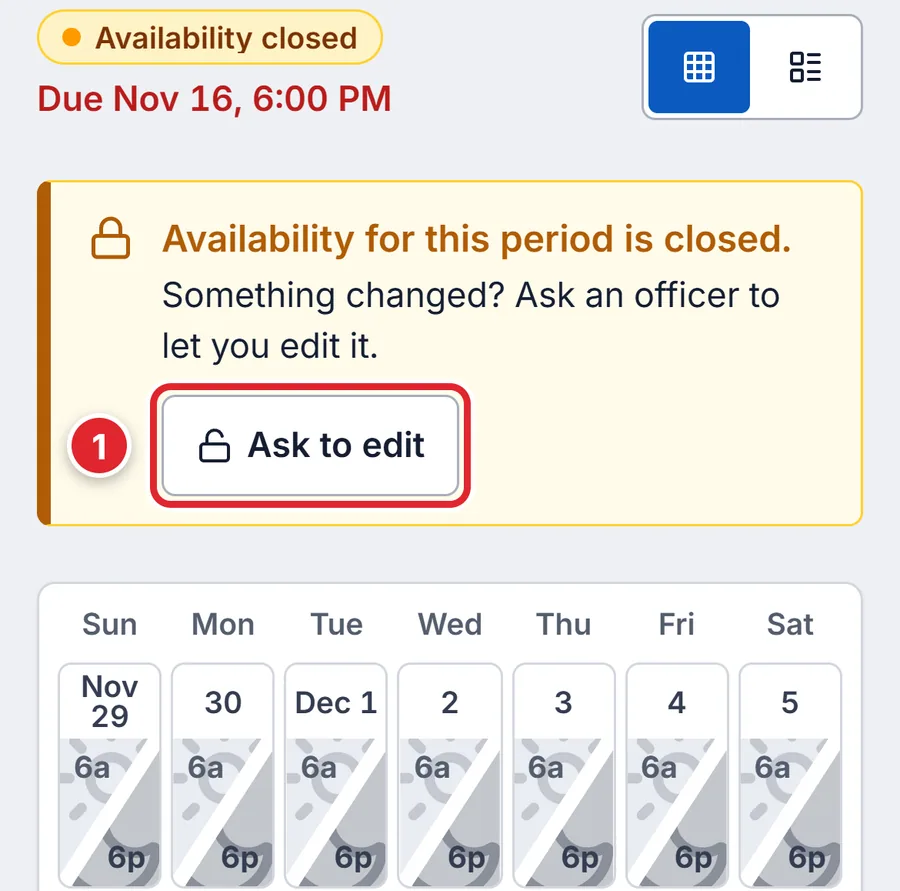
No Ask to edit button means your department doesn’t take late changes. Talk to the officer building the schedule.
#If something goes wrong
- Mark at least one shift before you submit. Submitting an empty calendar tells your officer nothing.
- Mark at least one shift, even if every answer is Can’t work.
- This period's schedule is published, so availability can't change now.
- Use a trade or give-up or time off instead.
- No periods to fill in yet
- Nothing is collecting availability right now.
- A banner says You left changes here without saving
- Tap Restore them to get your unsaved marks back, or Throw them away.
- No Availability in the menu
- Your role needs Set own availability. Only your department’s administrators can change roles and permissions. Support can’t change them for you.