
#Report it from the page
- Stay on the page where something went wrong. Open your account menu (your name, top right) and choose Report an issue.
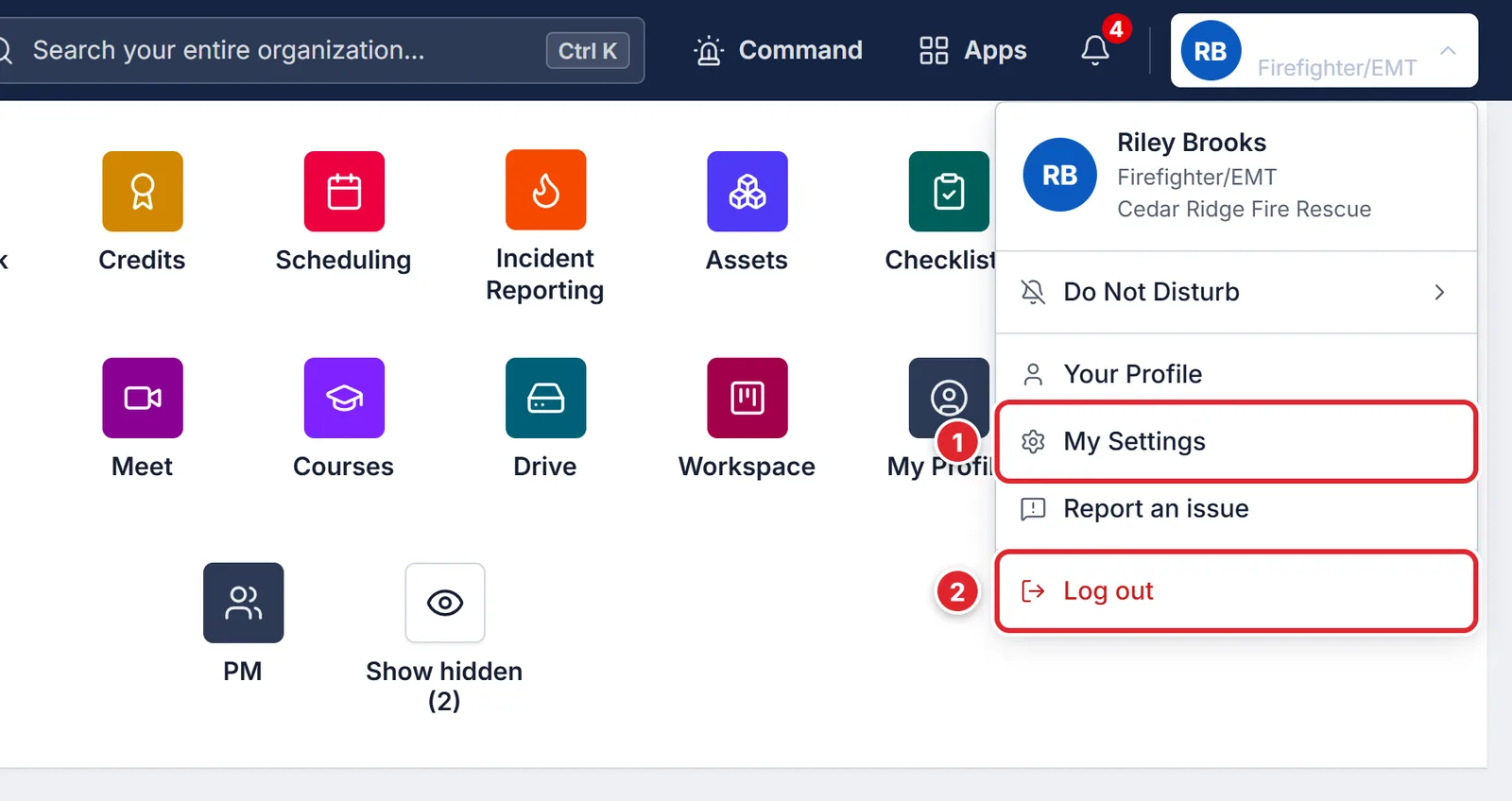
Report an issue is in your account menu. - Under What went wrong?, say what you pressed and what happened instead, for example “I pressed Save on the shift and nothing happened.”
- Check the screenshot. It goes only to Station Clipboard support; press Remove if it shows something you’d rather not send.
- Press Send report.
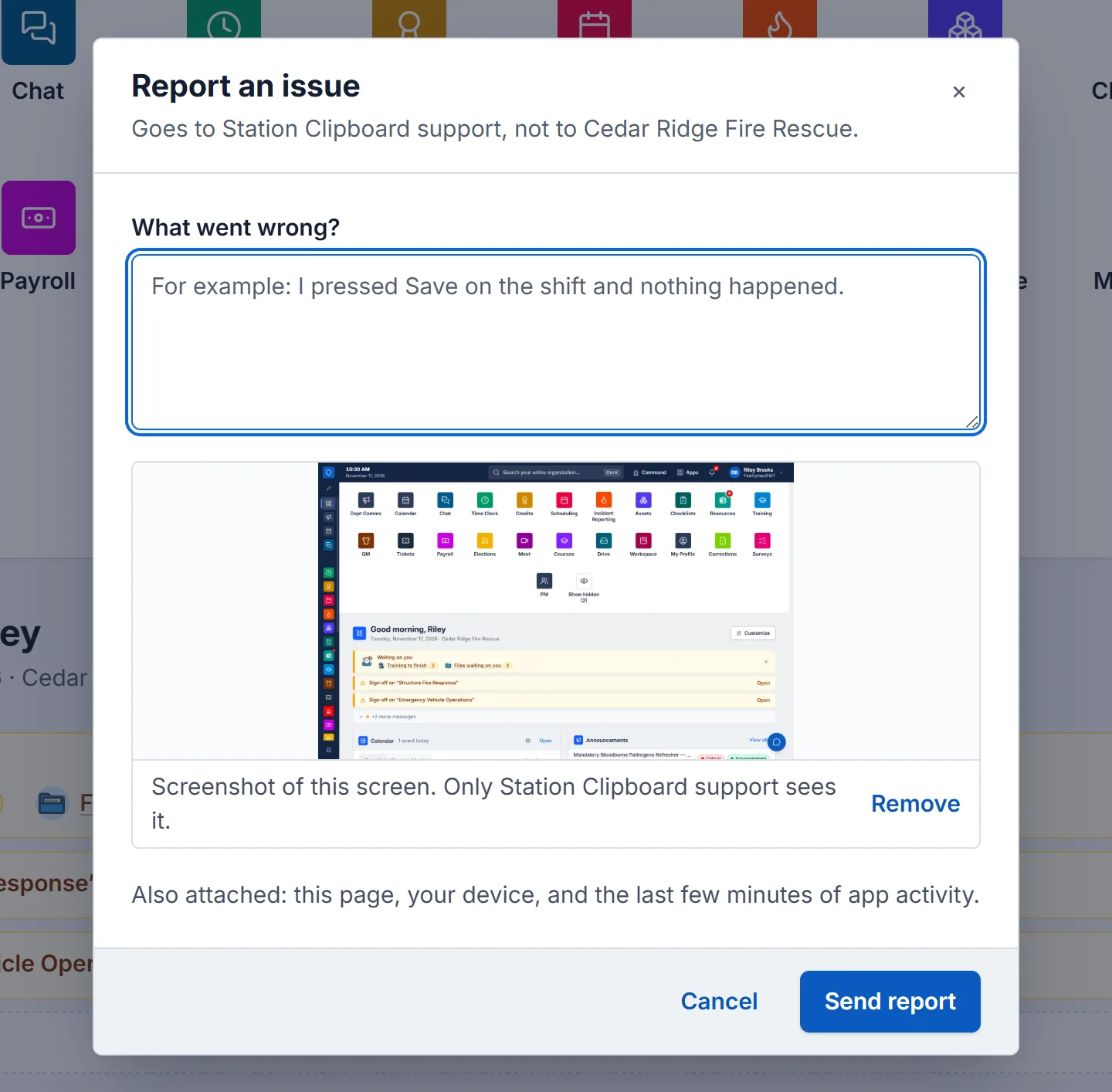
The report also includes the page you were on, your device, and the last few minutes of app activity, so we can see what happened without a back-and-forth.
#Or email us
Email help@support.stationclipboard.com any time. Every email opens a support ticket, and we reply to the address you wrote from. Include your department, what you were doing, and a screenshot if you can.
You can also open a ticket or report an issue from this Help Center after signing in.
#What support can and can’t do
We fix problems with Station Clipboard itself. Accounts, passwords, roles and permissions belong to your department, so for those, ask your department’s administrator first.