
#What you see
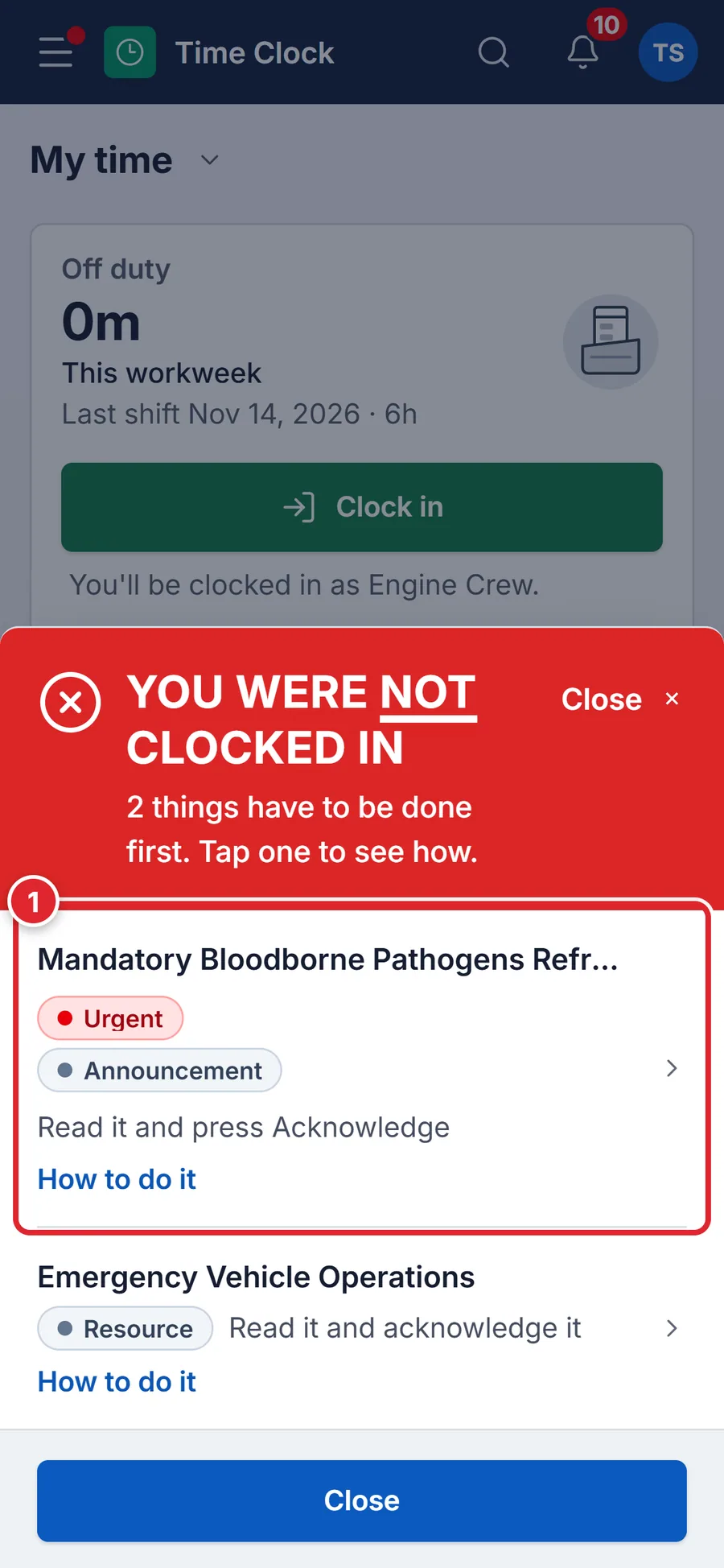
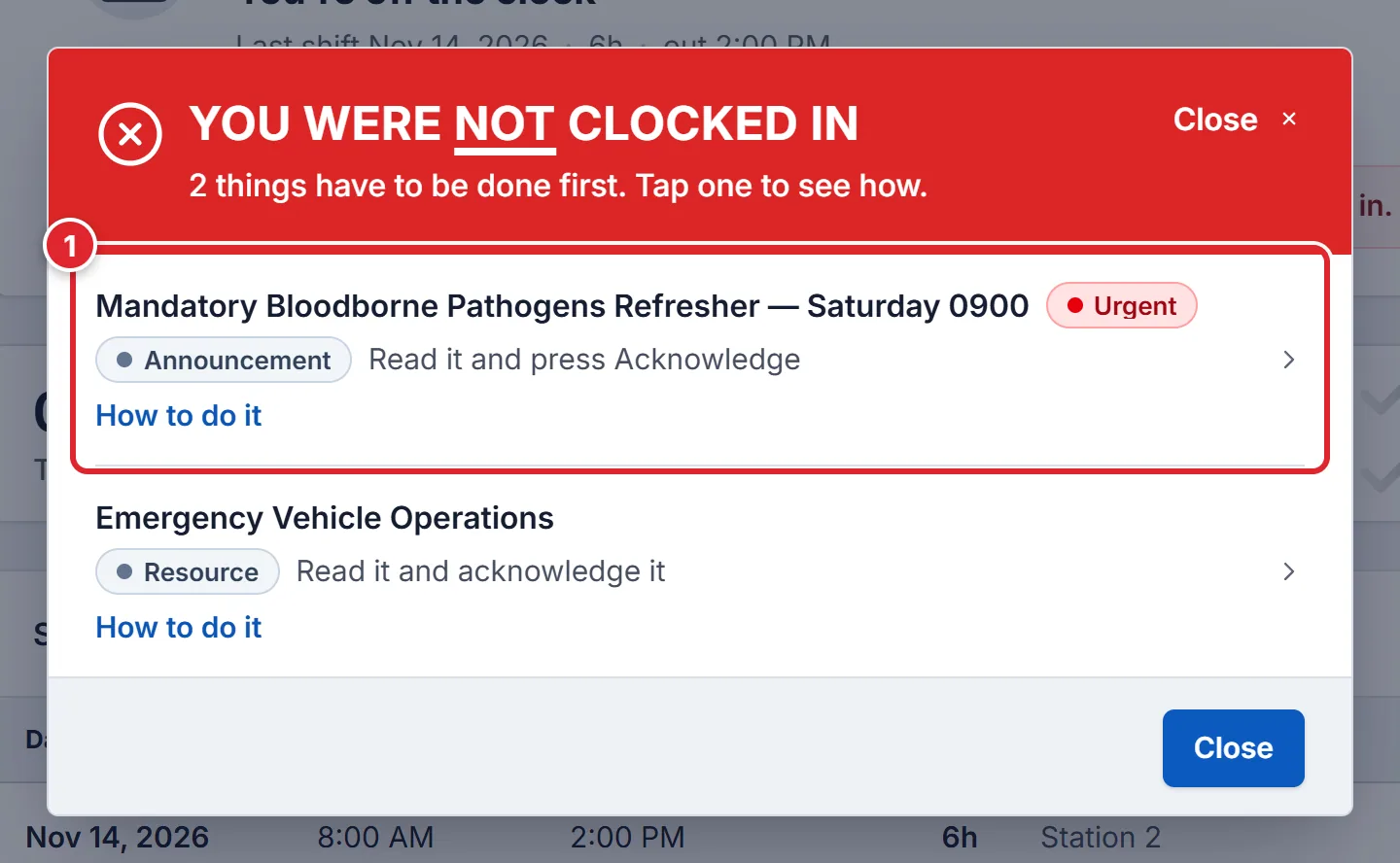
You press Clock in and get You were NOT clocked in with 2 things have to be done first. Tap one to see how. Your department turned on a rule that holds clock-in until you have read and acknowledged required announcements and documents. You are not on the clock yet.
#Clear it
- Tap the first item in the list.
- Press Open it now. The announcement or document opens.
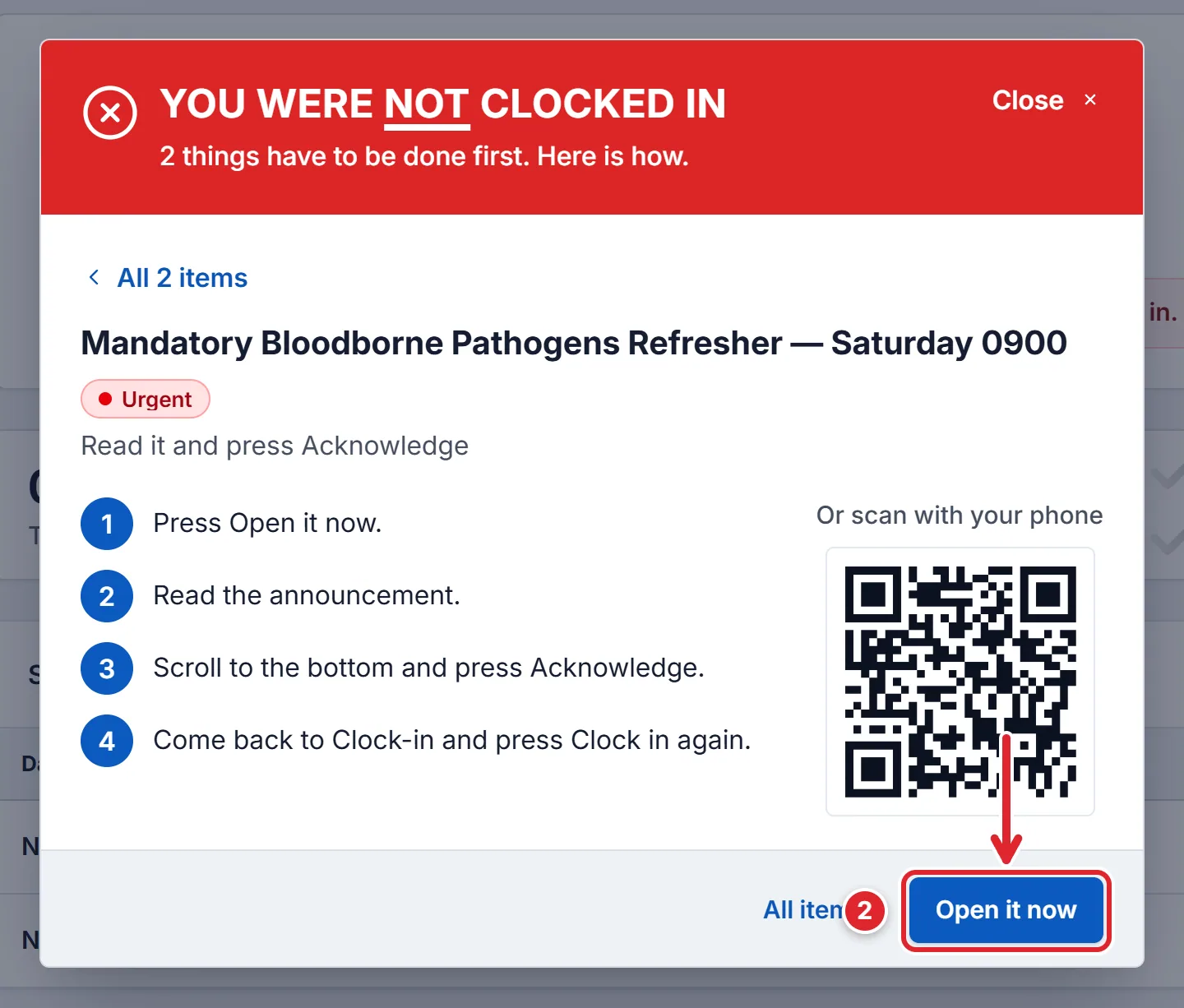
The steps are written for that item. At the kiosk you get a QR code to finish on your phone. - Read it, scroll to the bottom and press Acknowledge (or sign it if it asks for a signature).
- Come back to My time and press Clock in again. Repeat for any other item.
Tip
Clocking out is never blocked, only clocking in.
#If it still refuses
- You have 1 item waiting to be acknowledged. Open it and acknowledge to clock in.
- One item is still open. Check Dept Communications and your documents to sign off, finish it, then try again.
- You must clock in right now
- Ask an officer to enter the shift for you. They can add it under Time records.
Administrators: the rule is Block clock-in until acknowledgements are done under Time Clock → Settings → Clocking in. See Set up Time Clock rules.