
#Open the SCBA check
- In Checklists, tap the unit's SCBA check (it sits under SCBA checks on the board).
- Hold each seat's gear and compare the numbers on screen (1). Tap a number to correct it, or tick No gear (2) for an empty position.
- Tap Check and your seat, for example Check Officer (3).
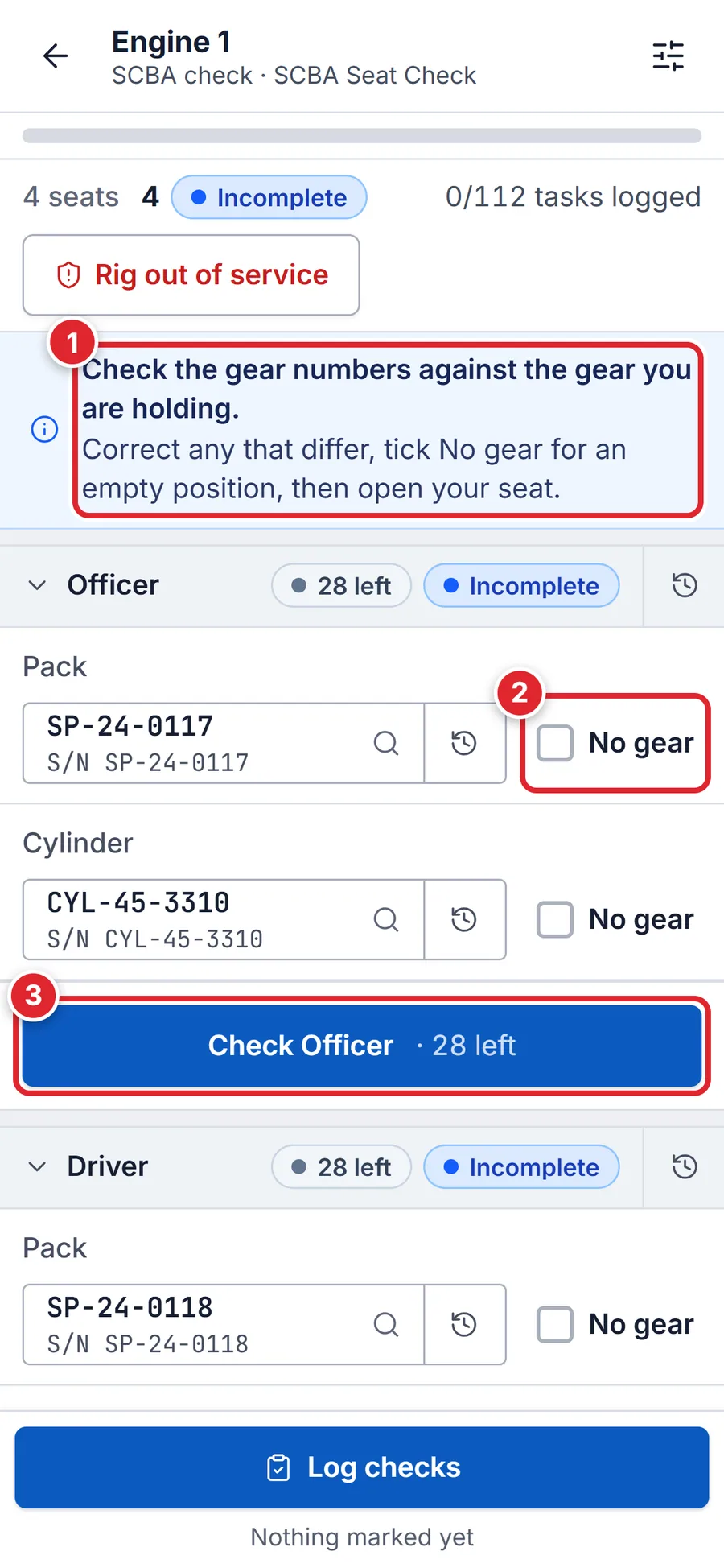
Match the gear (1), tick No gear if a position is empty (2), open your seat (3).
#Run the tasks
- Mark each task Pass, Fail or N/A (where allowed) (2), or tap Check all (1) when everything passes.
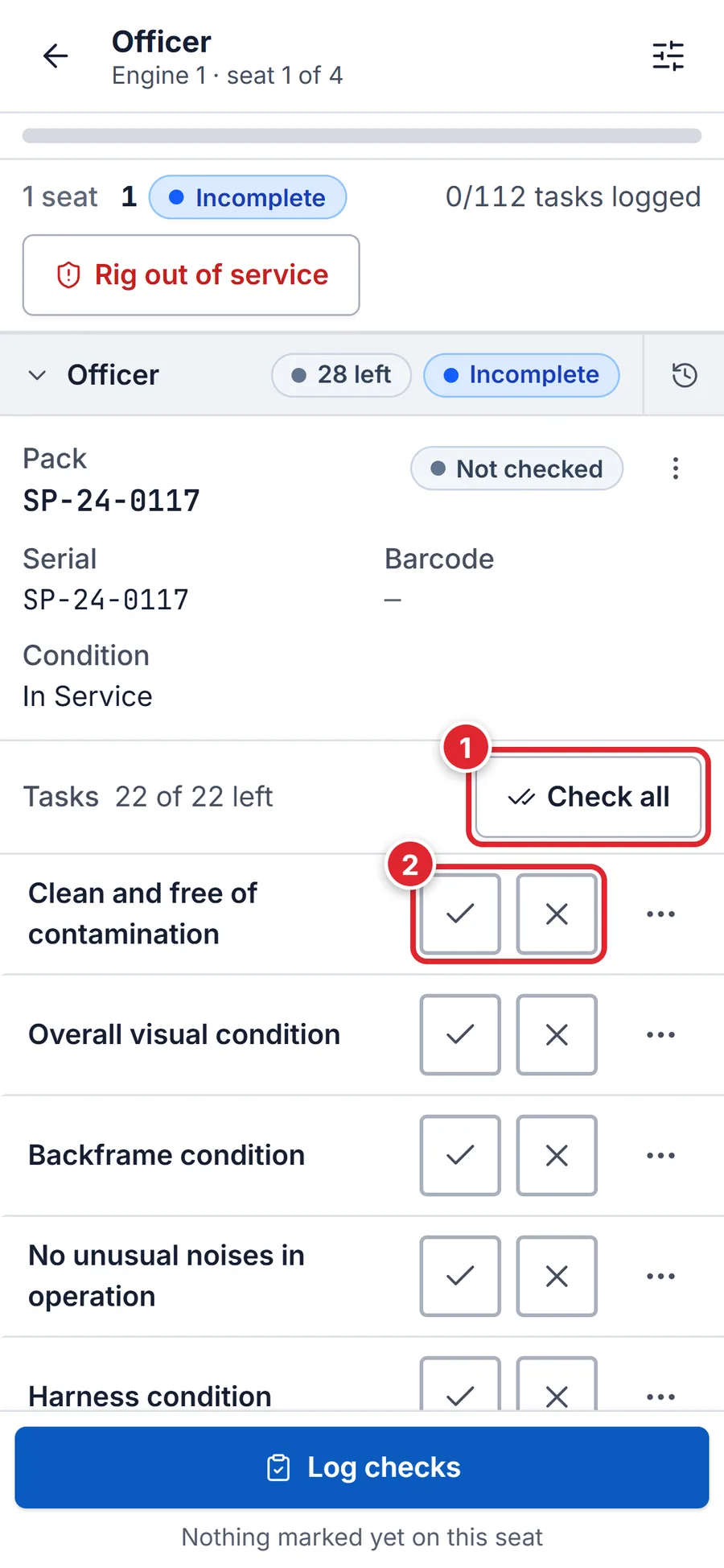
Check all (1) or mark tasks one by one (2). - Scroll to the cylinder and type the gauge reading in Cylinder pressure (1). The allowed range shows under the box.
- Filled the bottle? Tap Log air fill (2) and enter the before and after pressure.
- If a pack or cylinder can't be used, tap Failed inspection (3), say why and tap Report failure. Then choose Fit a replacement or Leave the position empty.
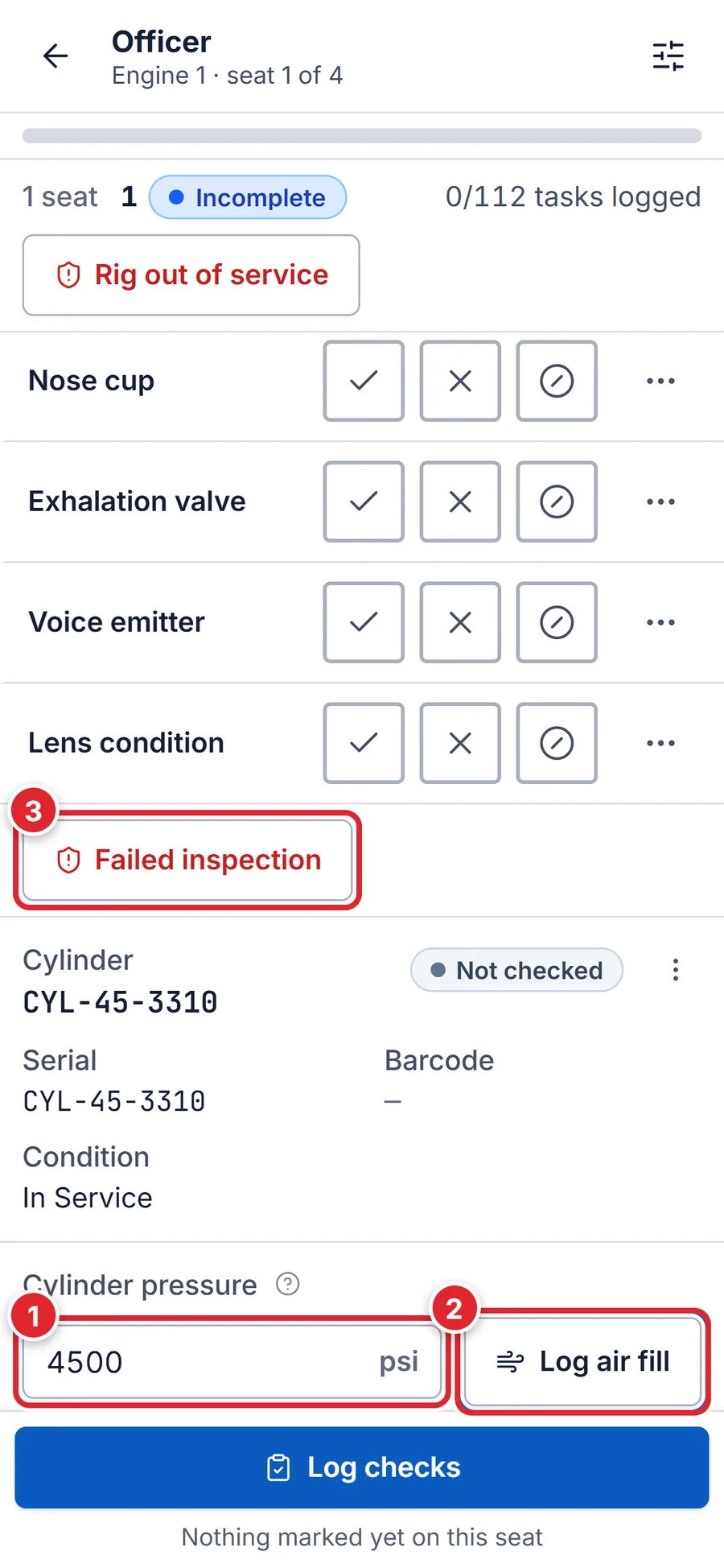
Pressure (1), air fill (2), failed component (3). - Tap Log checks and confirm. When every seat is logged you'll see SCBA check complete.
Rig out of service is for the truck itself. You don't need it for failed SCBA gear: a failed pack or cylinder raises its own alert.
#If something goes wrong
- Record the cylinder pressure.
- Type the gauge reading for every cylinder before logging.
- Record why there is no gear in this position.
- You ticked No gear: add the reason.
- This apparatus has no SCBA seats
- Seats haven't been set up for this unit yet. Ask whoever manages Checklists.
- Scanning, swapping gear or photos fail with no signal
- Task results and pressures are kept on the phone, but those need a connection.
Access
Running SCBA checks needs the Work checks permission. Only your department's administrators can give it, under Roles & Permissions. Support can't change your access.
#For administrators: set up seats
- Build the checklist in Setup → Checklists with target Per apparatus / unit and turn on Run this as a seat-based SCBA check. In SCBA gear, choose the Inspection tasks (Add the standard set is a good start) and where the equipment comes from (an Assets workspace).
- Open Setup → SCBA seats, pick the Apparatus (1) and use Add a seat (2) for each riding position. A new seat gets a Pack and a Cylinder; Add a position (3) adds another, for example a spare bottle.
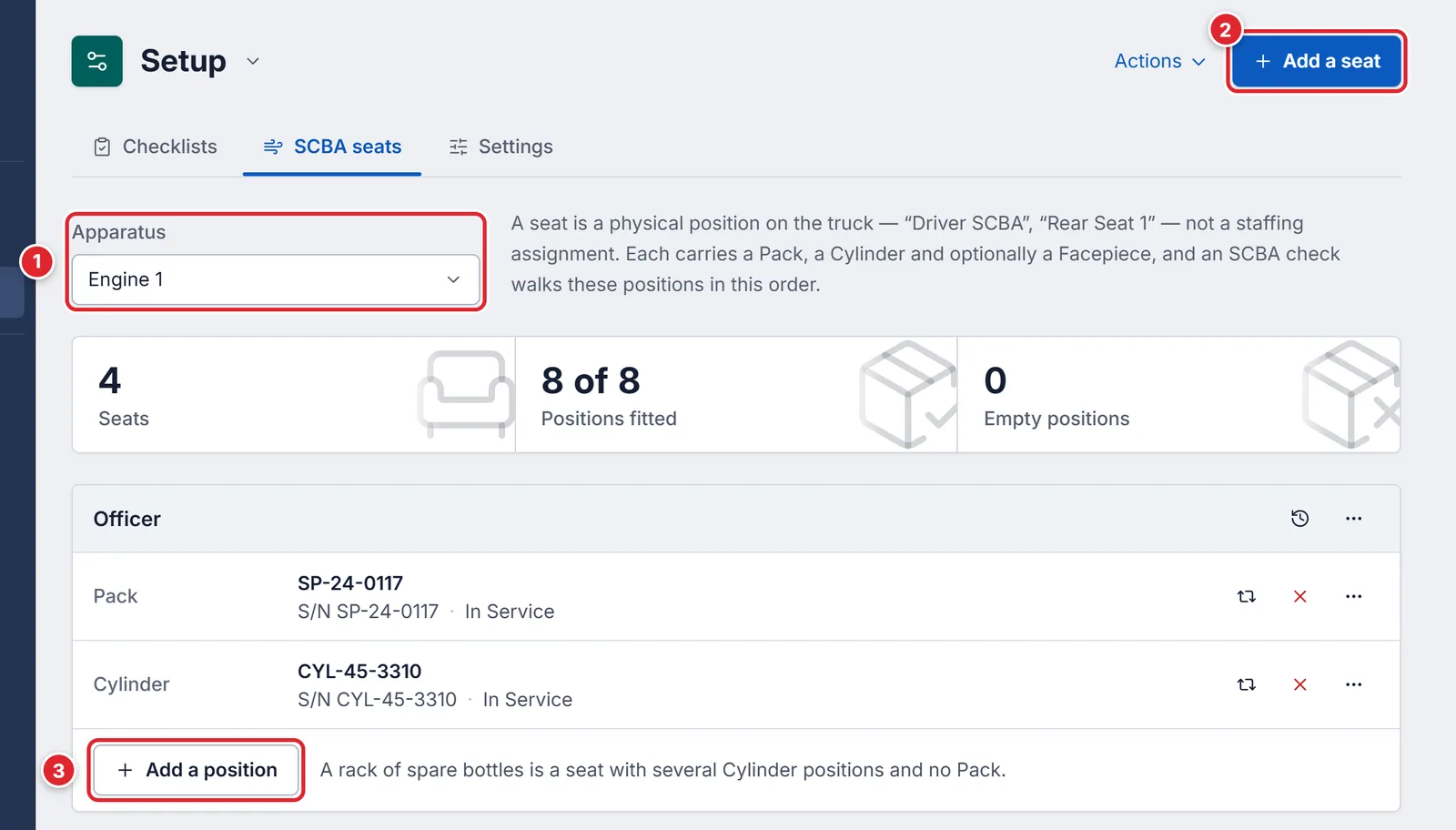
Choose the unit (1), add seats (2), add positions (3).
A seat is a place on the truck ("Officer", "Rear Seat 1"), not a person. Packs and cylinders are tracked in Assets, so Assets must be on.