
#Upload it
- In Training › My Training, find the session under Action needed and tap Upload. For anything else, press Actions › Upload certificate.
- Pick the file: a PDF or a photo (JPG, PNG or WebP), up to 10 MB. On a phone you can take a picture of the paper certificate.
- Under What is this certificate for?, choose A training (1), A certification or Something else, then pick which one (2).
- Tap Upload (3).
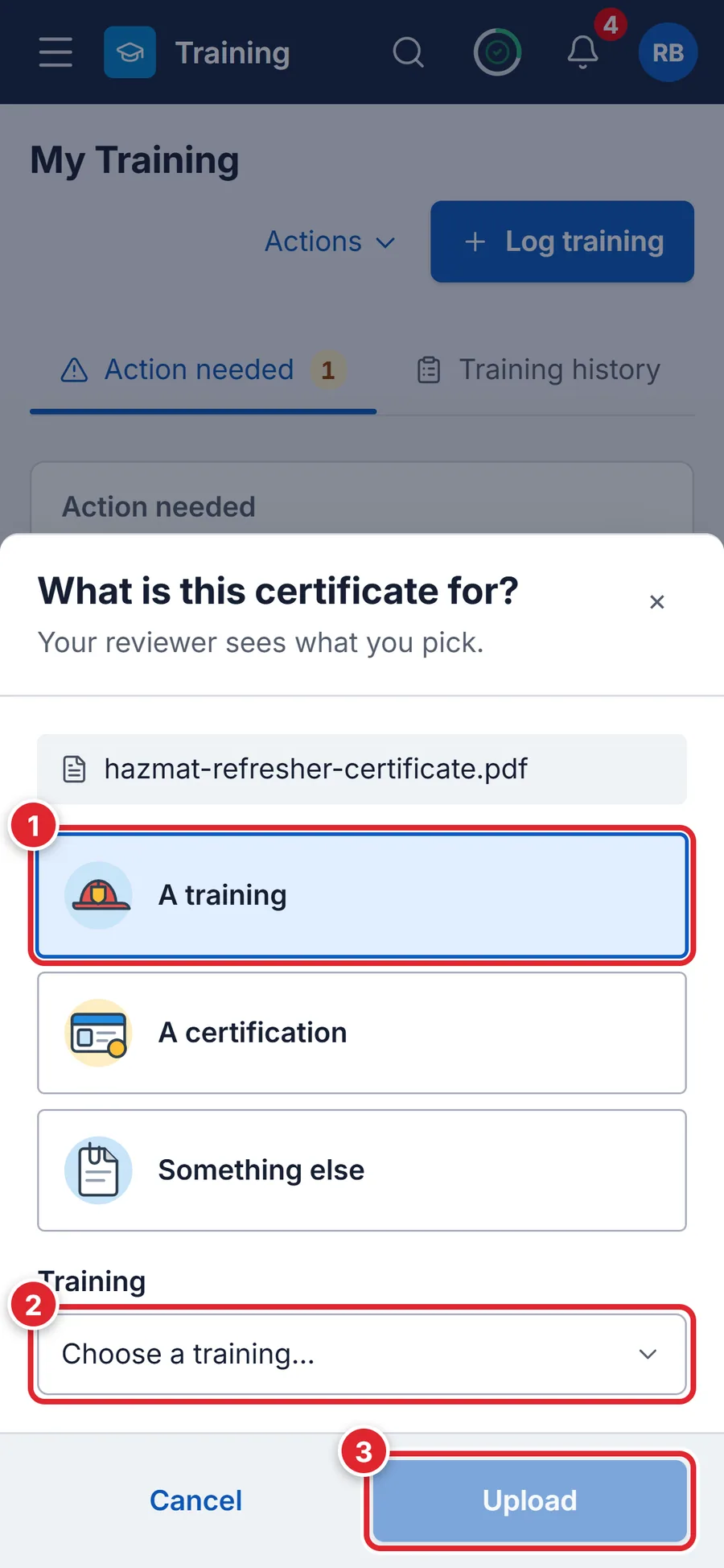
It shows as Pending under Certificates & docs until an officer approves it, and you get a notification when they do.
#If something goes wrong
- Choose a PDF, JPG, PNG, or WebP certificate file.
- Save or scan it as a PDF or picture and try again.
- Certificate files must be 10 MB or smaller.
- Take a smaller photo, or save the scan at a lower resolution.
- Self-uploaded certificates are disabled
- Your department doesn’t take uploads from members. Give the certificate to your training officer.
- You aren't on the roster for that training.
- Pick a session you attended, or choose Something else.
- It was Rejected
- Open it to see why, then upload a corrected file.