
#Log it
Before you start
Your department has to switch self-logged training on first. If there’s no Log training button, it’s off.
- In Training › My Training, tap Log training.
- Type what it was under Training (1), for example “Ladder throws and SCBA drill”.
- Pick the Date (2). The line under it says how far back you can go (30 days unless your department changed it).
- Tap the Hours (3), or Other for a different amount. One entry has a limit, shown under the buttons.
- Under Crew, add Who else was there? so their hours are logged too. Under Details you can add the category, CE credit, location, instructor and notes. Under Attachments, add a sign-in sheet or photo.
- Tap Submit (4).
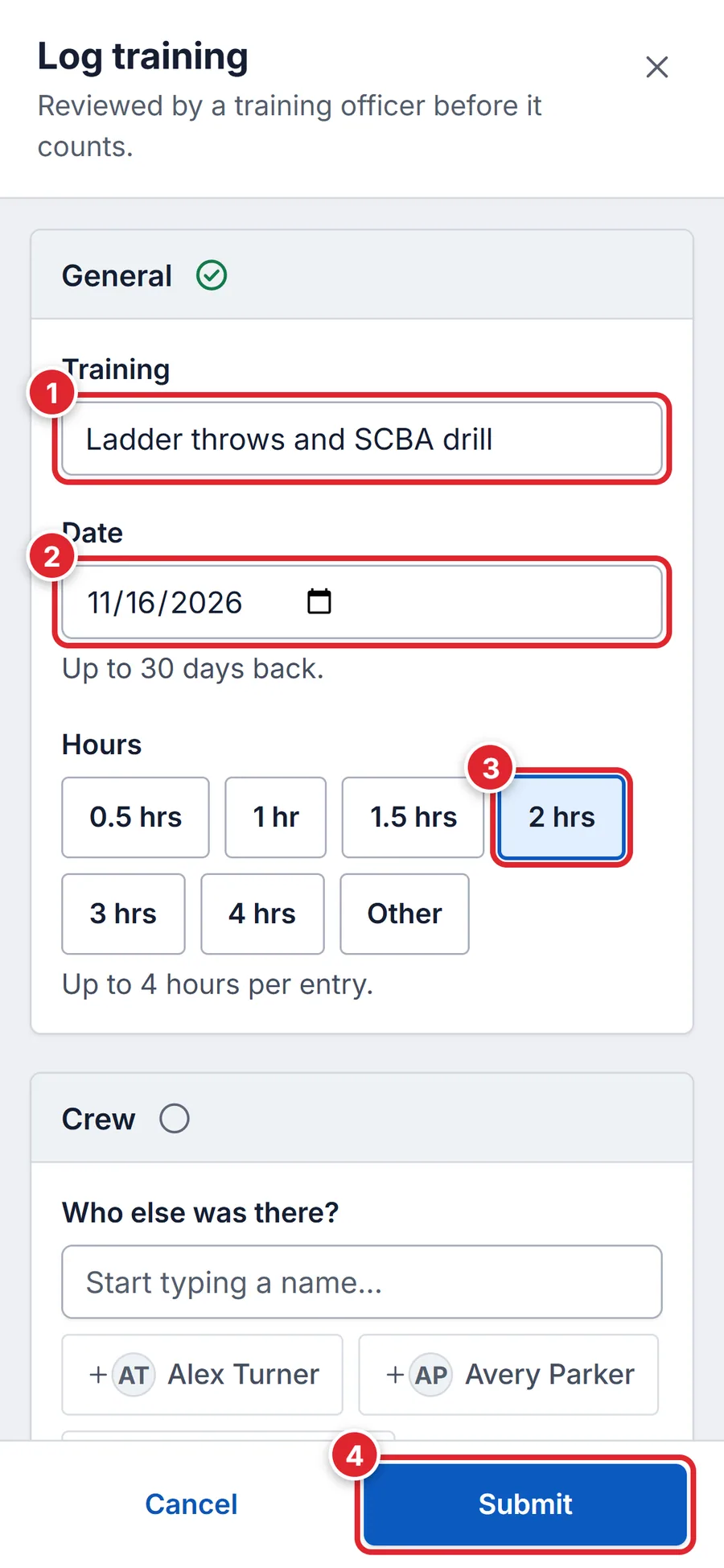
It shows under Awaiting approval until a training officer approves it, then the hours count. If your department doesn’t review logged training, the button says Log it and the hours count straight away.
#If it comes back to you
A returned entry appears under Action needed with the officer’s reason. Open it, fix what they asked, and press Save. While it’s still waiting you can withdraw it instead; you’re asked Withdraw this entry? first.
#If something goes wrong
- Self-logged training is turned off for this department. An administrator can enable it under Training → Settings.
- Your department doesn’t take self-logged training. Give the details to your training officer.
- This department caps a single self-logged entry at 4 hours. Split a longer course into separate entries, or ask a training officer to record it.
- Split it into days, or ask the training officer to record it as a session.
- You can't log training that hasn't happened yet.
- Pick today or an earlier date.
- This department doesn't let members log training for other people.
- Remove the people under Crew; each person logs their own.
- That category is no longer available.
- Pick another category.
- No Log training button
- Self-logging is off, or your role lacks Log own training. Only your department’s administrators can change roles and permissions. Support can’t change them for you.