
#Before you start
Set up comes first: Set up payroll. Each step needs its own permission: Prepare payroll time and Approve payroll time, Prepare a payroll run, Approve a payroll run, Finalize a payroll run, Publish pay statements and Export payroll. Only your department's administrators can grant them. Nobody can approve their own time.
#1. Collect and approve time
- Open Payroll → Time. Pick the pay group and the pay period.
- Press Bring in Time Clock hours to pull completed Time Clock shifts, or Add time under Actions to enter hours by hand. New time arrives Pending.
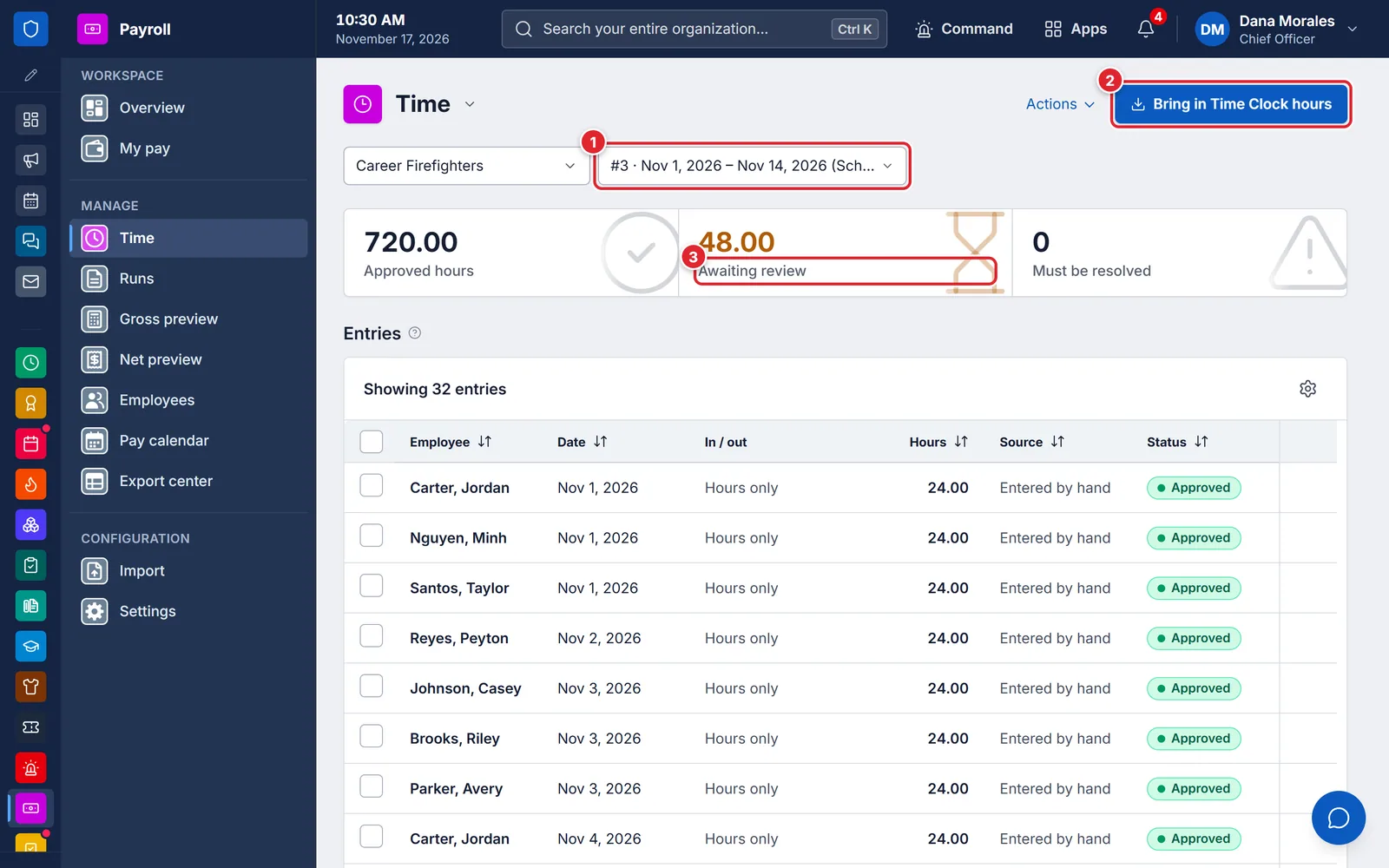
3: hours still awaiting review are not paid by the run. - Tick the entries and press Approve (or Reject with a reason).
Only shifts with a clock-out come in. Fix missing clock-outs in Time Clock first, then bring the hours in again: it never pays the same shift twice.
#2. Open and calculate the run
- Open Runs and press Open a run. Choose the Pay group and Pay period, leave Type on Regular, and press Open run.
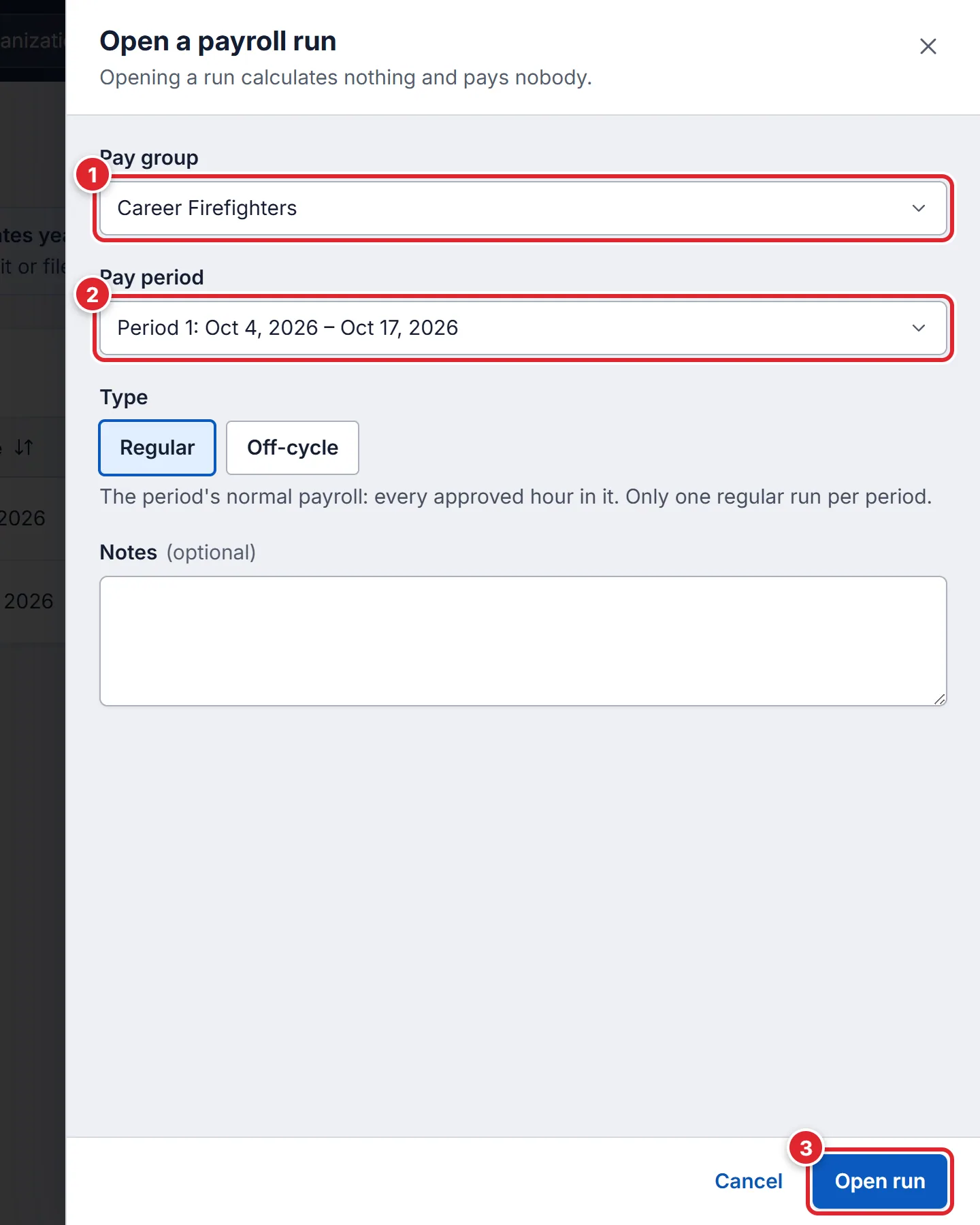
Off-cycle is for pay a regular run missed. - On the run, press Calculate. Check the totals, the Exceptions and each employee, then press Submit for approval.
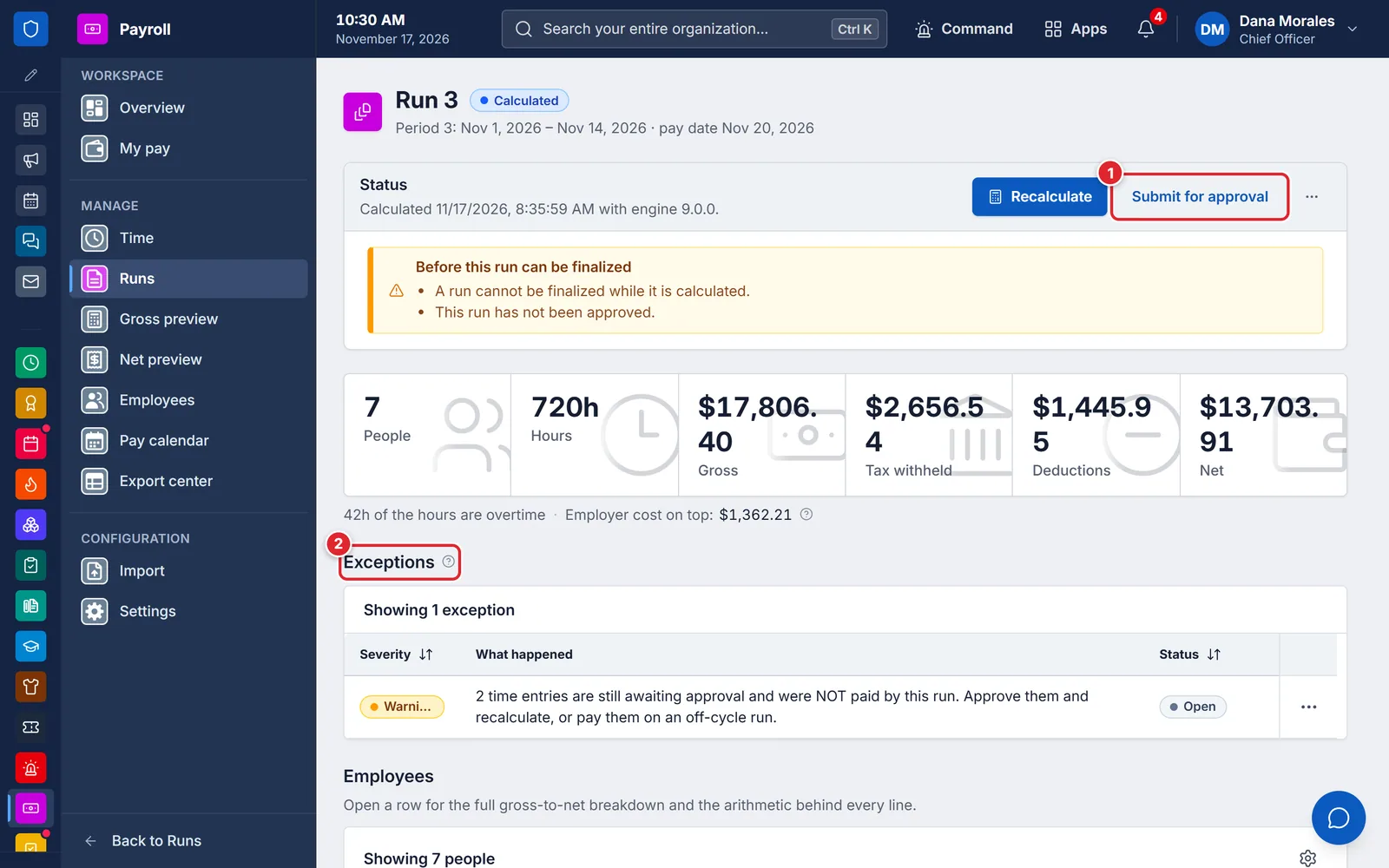
The yellow box lists what still stops the run being finalized.
#3. Approve and finalize
- The approver opens the run and presses Approve (or Return for changes with a reason). If your department requires it, a second person presses Give the second approval.
- Press Finalize, read the summary, and press Finalize permanently.
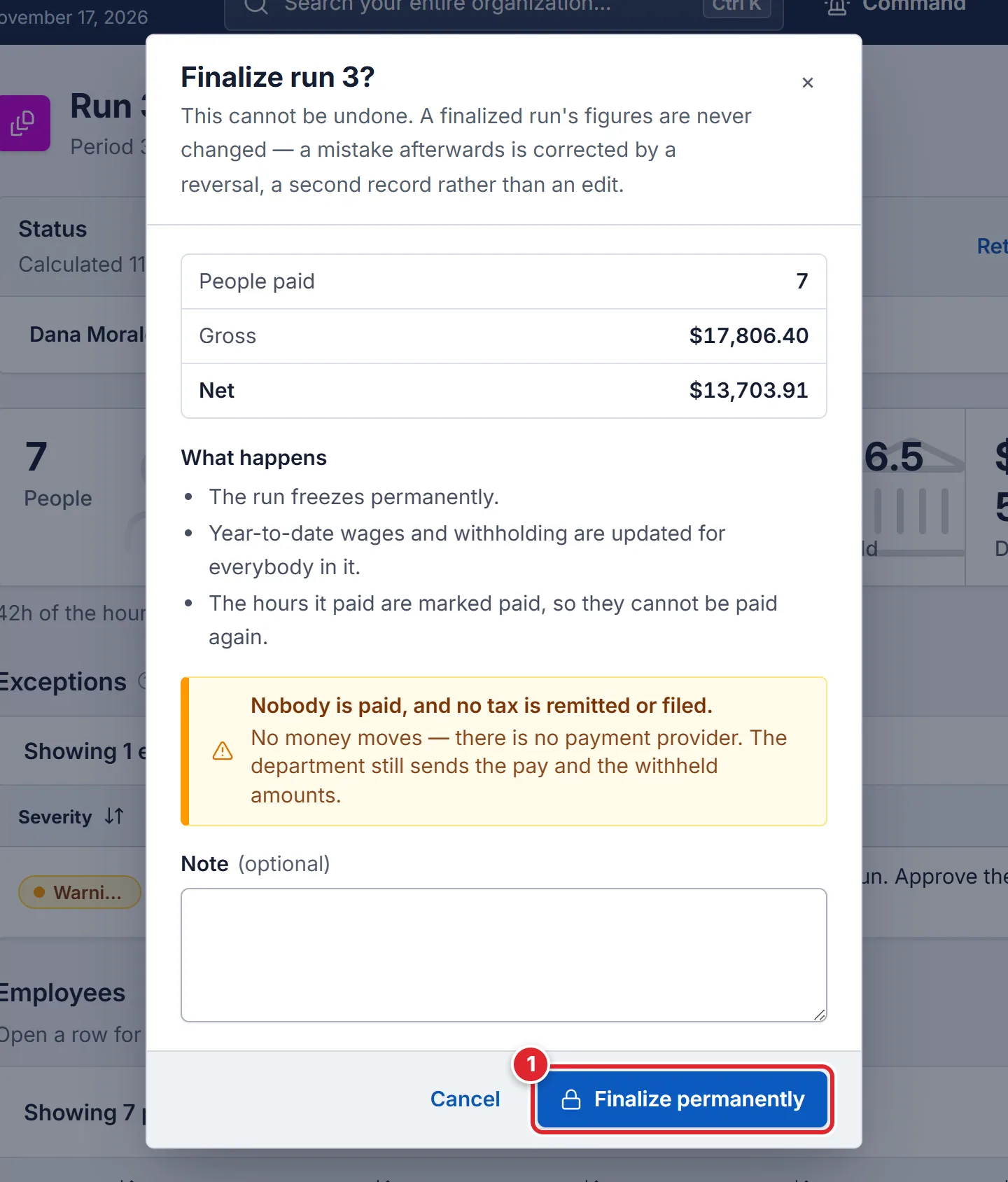
A finalized run never changes. Mistakes are corrected with a reversal or an off-cycle run.
#4. Publish statements and export
On the finalized run, press Publish statements and confirm with Publish. Each employee then sees the statement under My pay. Withdraw takes them back (a reason is required).
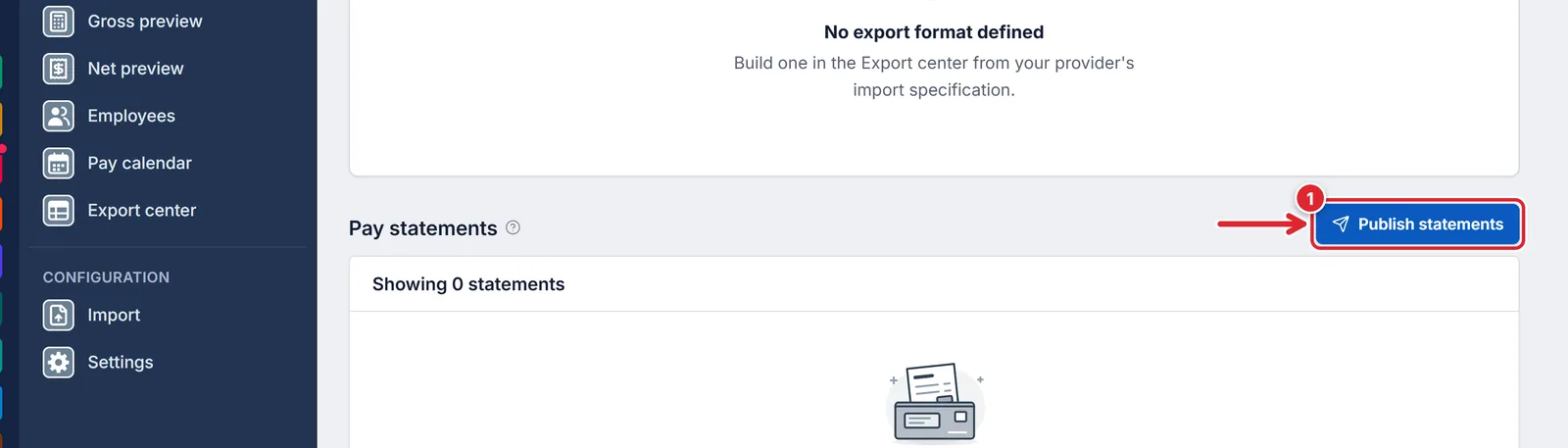
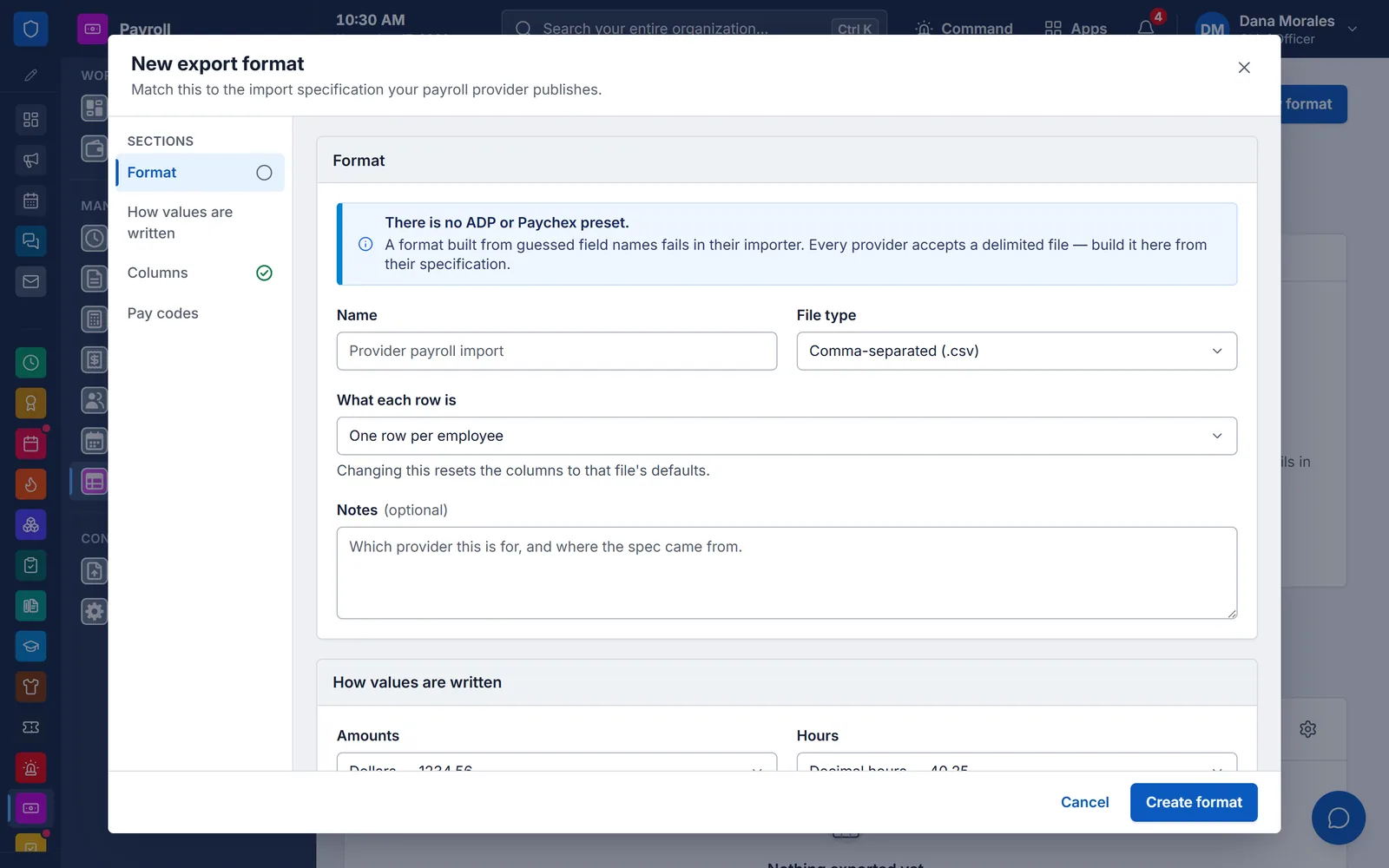
To send the run to your provider, first build a format in Export center → New format (comma- or tab-separated, matching your provider's import layout). Then on the run use Export to a payroll provider: choose the Format, press Preview, then Generate. Past files can be downloaded from the export history.
#What stops a run, and what to do
- No confirmed federal tax rule set has been loaded, so federal income tax was not calculated. Load this year's figures from IRS Publication 15-T.
- Load and confirm this year’s figures in Settings → Tax setup, then press Recalculate.
- No withholding election (W-4) is on file, so tax cannot be calculated for this employee.
- Record the W-4 on the employee’s Withholding tab, then recalculate.
- … has no pay rate in force for this period, so nothing can be calculated.
- Record a rate on the employee’s Compensation tab.
- 2 time entries are still awaiting approval and were NOT paid by this run. Approve them and recalculate, or pay them on an off-cycle run.
- Approve the time on the Time page and press Recalculate.
- N blocking exceptions are still open. Resolve each one, or waive it with a reason.
- Fix the cause, or use Waive… and Waive and accept the risk with a reason.
- This organization requires a second approval before payroll is finalized.
- A different person with Give the second approval must approve.
- You gave the first approval on this run. A second approval exists so that two people check the payroll, so it has to come from somebody else.
- Ask another approver.
- Run 2 already paid this period. Create an off-cycle run…
- A period has one regular run. Use an off-cycle run for anything it missed.
- This run was finalized and cannot be changed. Issue a reversal to undo it, or an off-cycle run to pay something it missed.
- Use Reverse on the run, or open an off-cycle run.
- This pay period has been finalized. Time can no longer be added to it.
- Pay the missing time on an off-cycle run in that period, or in the next period.