
#Before you start
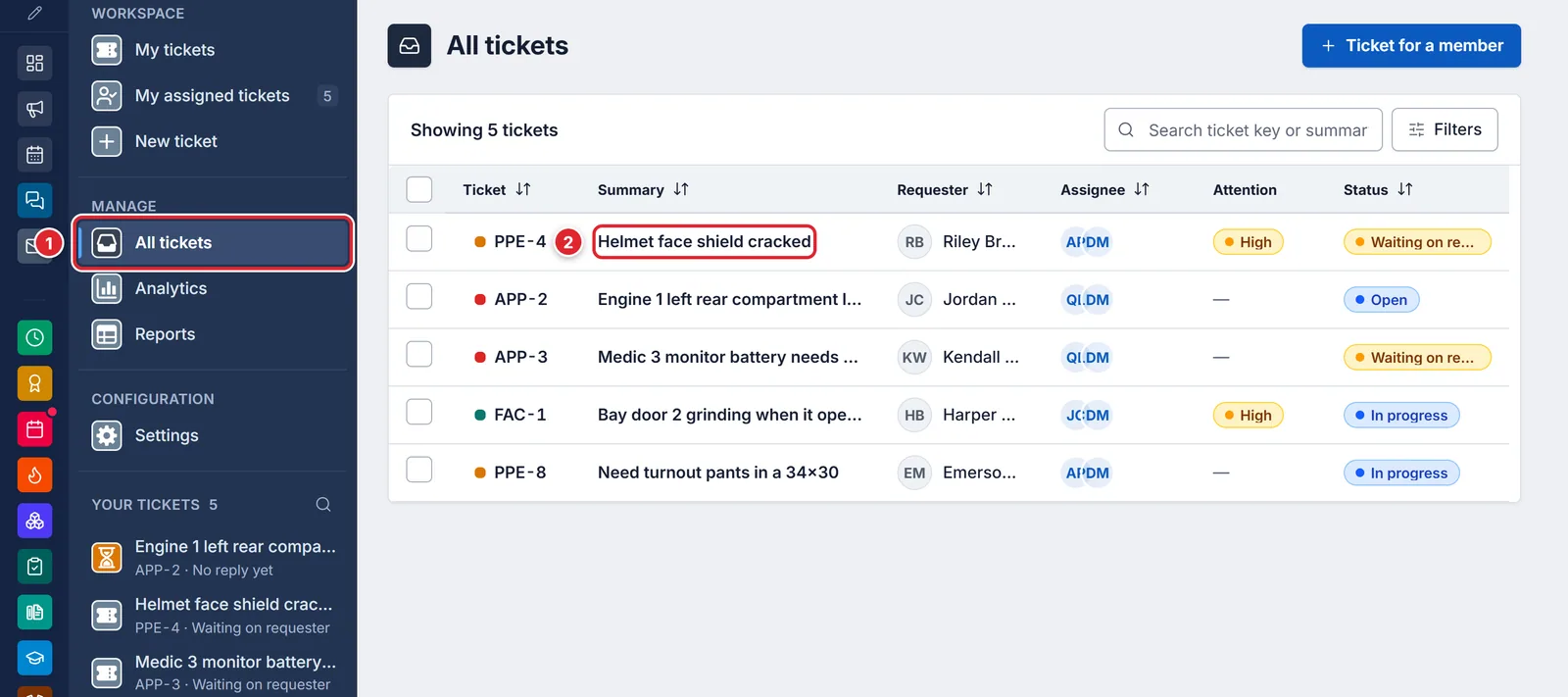
Open the staff workspace shows All tickets. Reply to tickets lets you answer and be assigned, Manage ticket workflow lets you change status, priority, category, due date and assignees, and Share tickets outside the department allows email sharing and PDFs. Each category can narrow this further. Only your department's administrators can grant these.
#Find the ticket
In Tickets, open All tickets for everything you can see, or My assigned tickets for your own work. Click a row to open it.
#Reply, note and update it
- Choose Public reply to write to the requester, or Internal note for something only staff see. Notes are marked Internal and never reach the requester or an outside contact.
- In Details, change the Status. Set Waiting on requester when you need an answer: the requester is told the ticket is waiting on them. Use Resolved or Closed when the work is done.
- Under Assignees, use Add an assignee… to hand the ticket to someone.
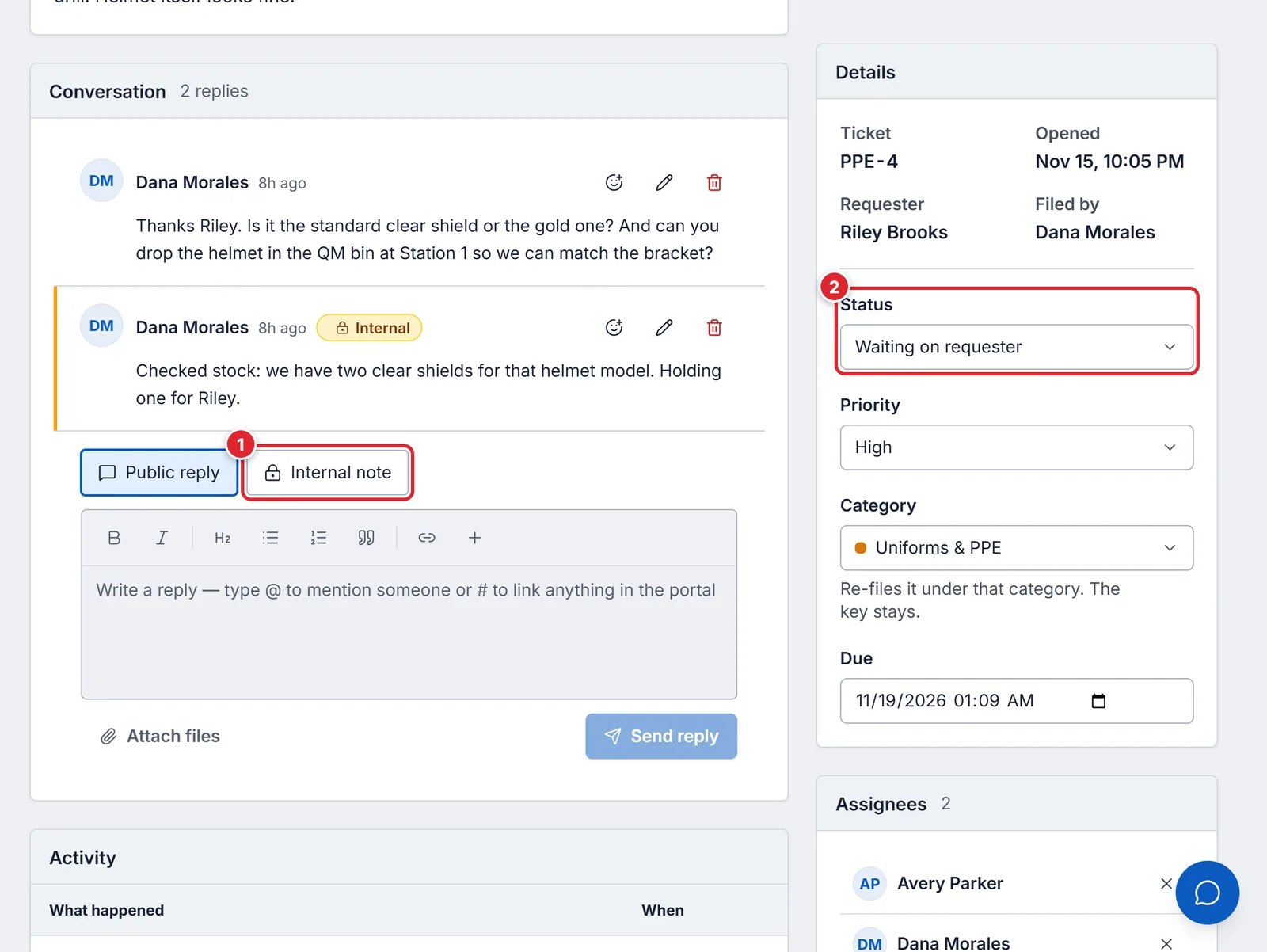
1 — Internal note. 2 — Status.
#Due dates and alerts
Each category can give tickets a due date a number of hours after they are filed. Assignees get a "due soon" notice two hours before and an "overdue" notice after. If nobody is assigned, nobody is notified, so assign tickets or set a default assignee on the category.
#If something goes wrong
- You cannot add this reply.
- Your roles cannot respond in this ticket's category.
- You cannot manage tickets in "Facilities".
- You can reply but not change status or assignees in that category.
- This ticket has been closed, so it can no longer be shared. Download the PDF instead.
- Use Download PDF and send the file.
- A staff member cannot see a ticket
- Their role is not in the category's review, respond or manage lists.